
Bring the social loyalty network to your market.
The social loyalty network is NowSquare’s software for local discovery, business updates and digital loyalty programmes. We’re looking for companies to bring it to a market, develop a product under their brand or build a business with us.
Follow a visitWays to work together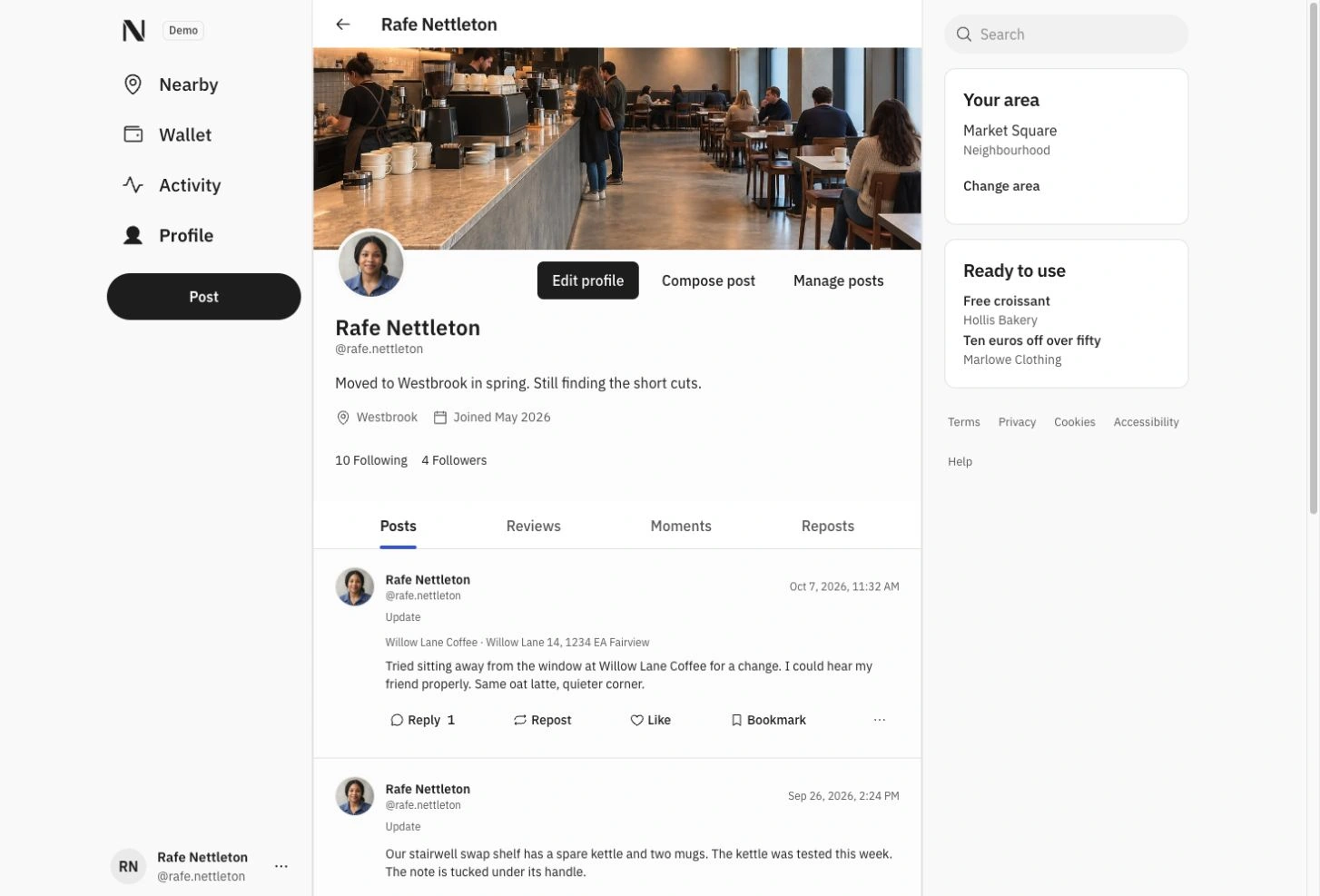
Ways we could work together.
You might bring a brand, access to a market, an operating team or investment. We can explore how your company and NowSquare could develop the commercial opportunity together.
A product under your brand
Work in social networking or loyalty and want to add a new product line or division? We can explore a partnership where you bring your brand, market access and funding, and we lead product design and development with the freedom to shape the product.
Operating and distribution partners
Your company might have an established business network, know a region or want to operate the network in a market. We can discuss how you would introduce the product, recruit businesses and organise support, with clear roles for your team and NowSquare.
Investors and joint ventures
Your company might bring investment, commercial experience or a team to run the business with us.
- The business model
- Our commercial approach keeps member access and loyalty use free and centres on optional business membership and clearly labelled promotion. We can discuss the model as part of a collaboration.
These are examples. If your company sees another commercial opportunity, we’d like to hear it.
Tell us about your company, the market or opportunity you see, and what you would bring to a collaboration.
Know a company this could suit? Share this page with them.
From a first look to a return visit.
Find somewhere worth stopping.
Choose an area, open the map and read what a business offers before walking in.
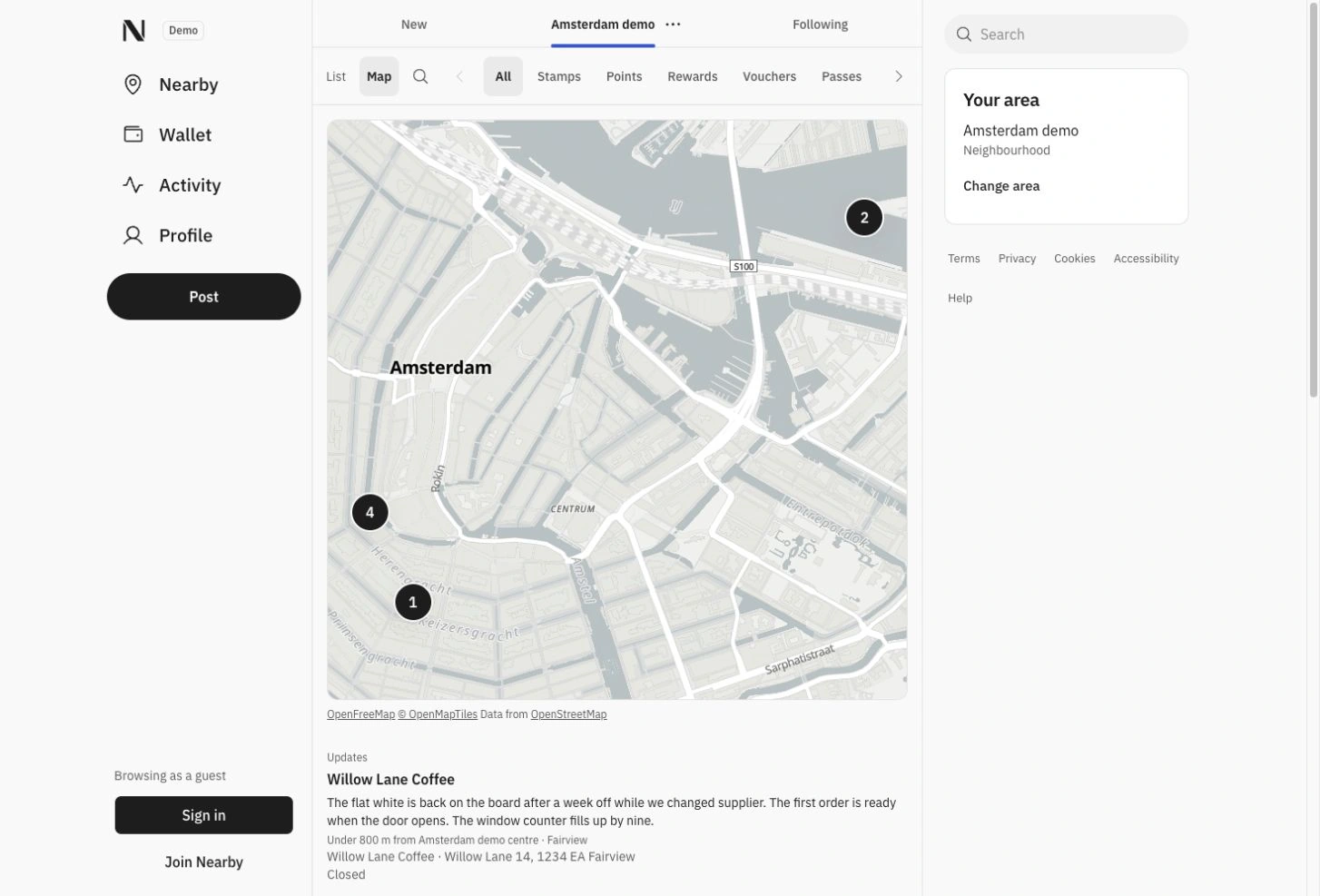
Explore the city map
Fictional demo locations on a map of Amsterdam. Pins group the displayed posts and loyalty programmes by address; the streets and canals make the area easier to recognise.
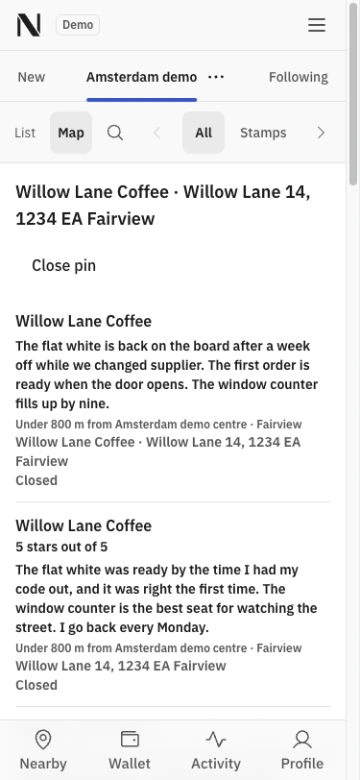
Open a place on the map
Willow Lane Coffee’s pin shows its posts, review and pass announcement. Each result links to its own page. This business and address are fictional.
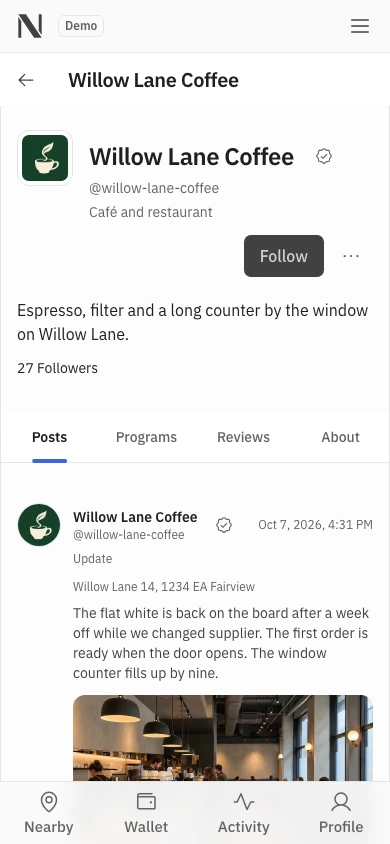
A place to follow
A business profile brings its posts, programs, reviews and practical details together.
Make the visit count.
The member and the person behind the counter see two sides of the same visit.
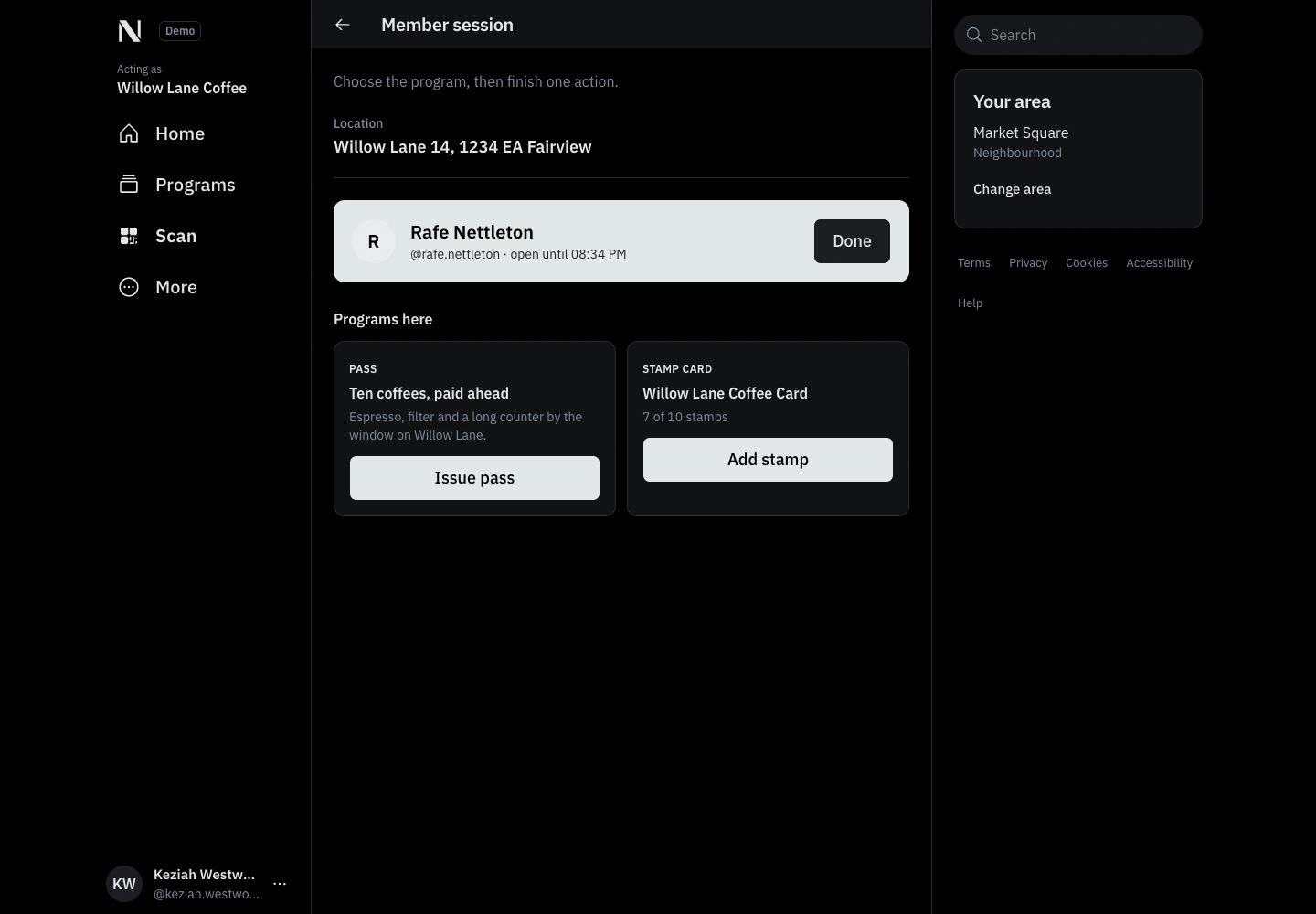
The staff’s view
Keziah is working for Willow Lane Coffee. The counter shows Rafe’s seven stamps and the available Add stamp action.
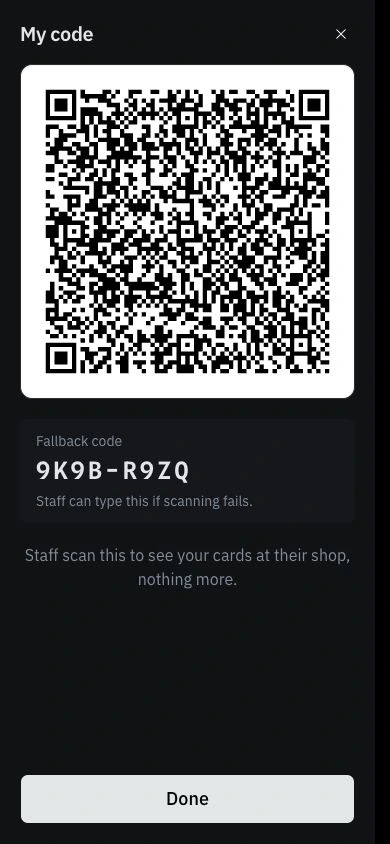
Your member code
The member opens this screen at the counter. Staff can scan the temporary QR code or use its text alternative to identify the account.
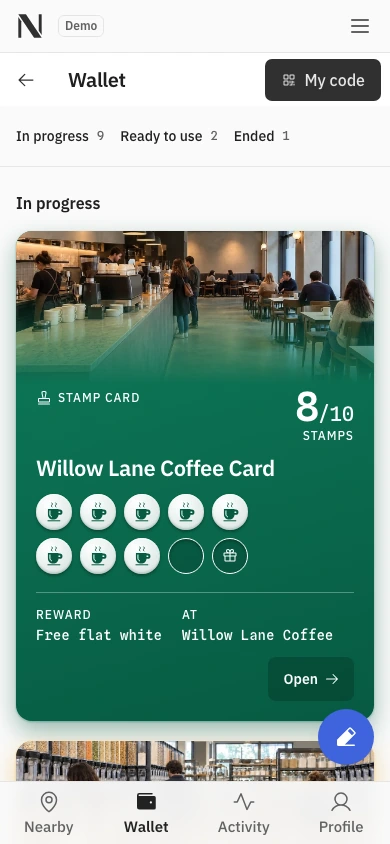
The updated wallet
After a staff member records a stamp, the open member wallet updates from seven to eight.
See what’s ready for your next visit.
A ready reward is a reason to return. Its conditions stay close to the card.
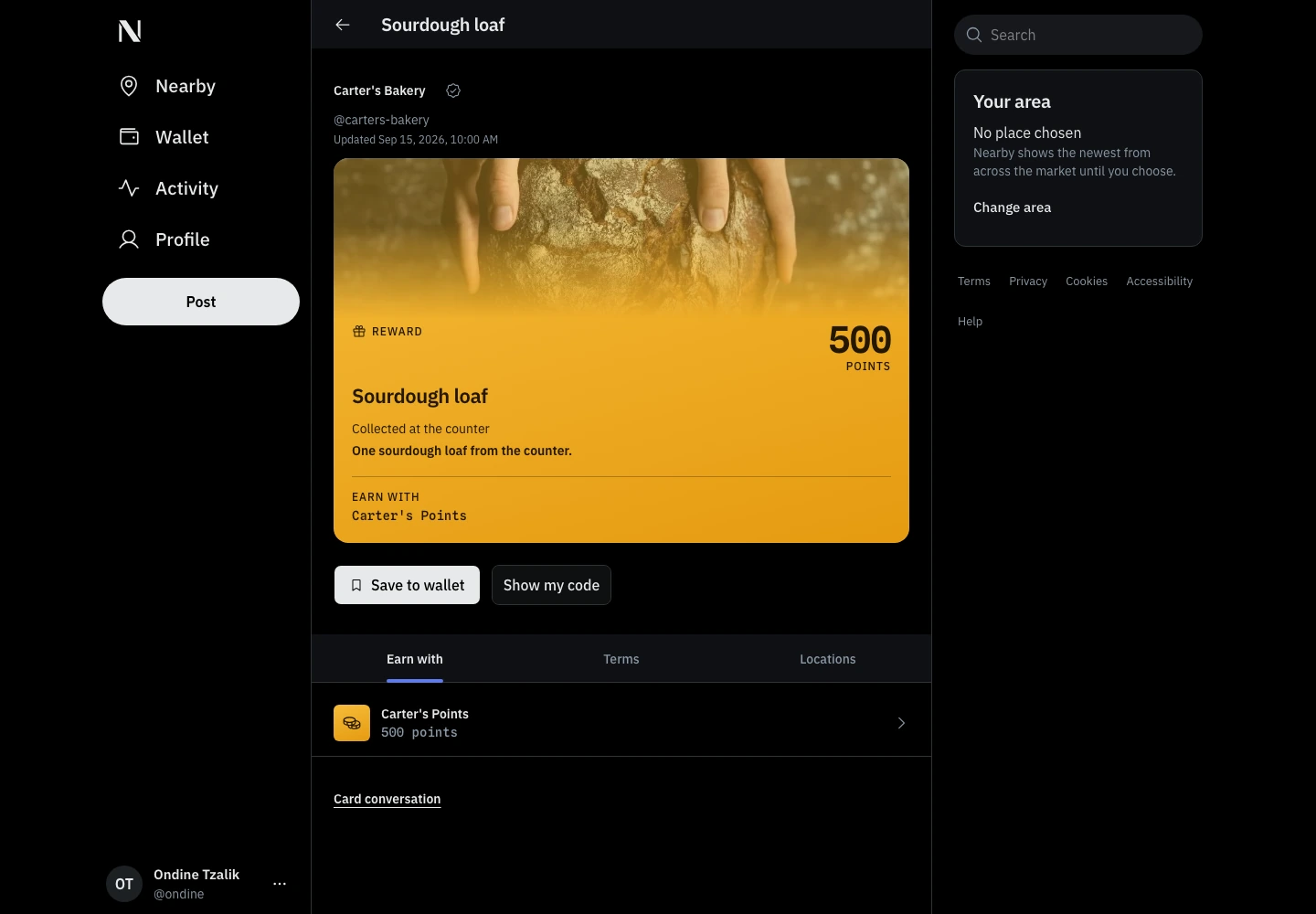
Rewards
A reward shows what it costs in points and which card earns those points.
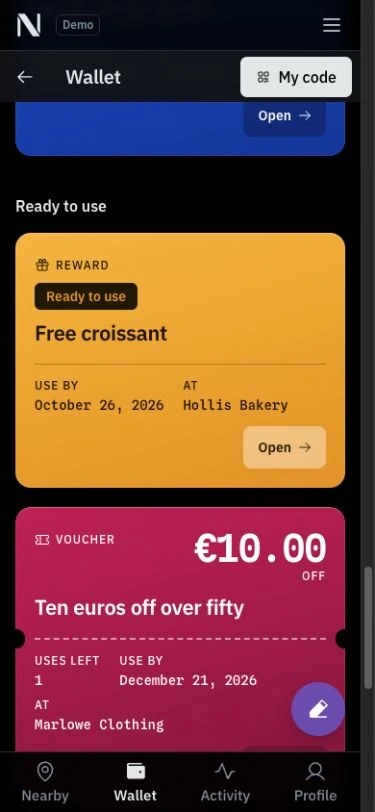
Ready for your next visit
The Ready to use section gathers rewards and vouchers, with the issuing business and deadline visible before the member goes to the counter.
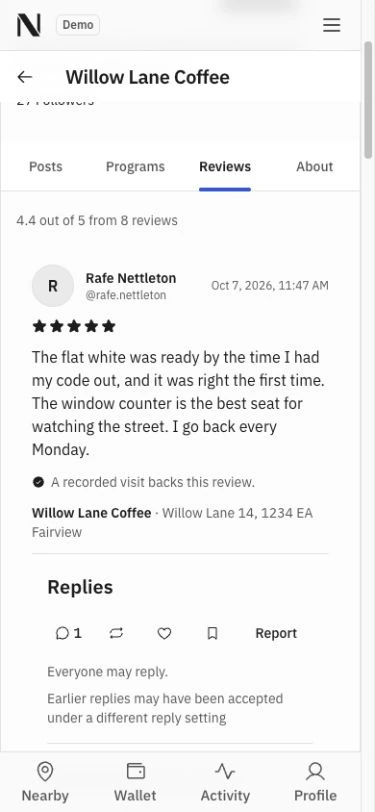
Reviews with a recorded visit
The review identifies its business and location. A recorded counter visit backs the review; replies stay with it.
Set up a loyalty programme for your business.
Follow a café owner as they set up a stamp card, choose its stamp style and connect a reward.
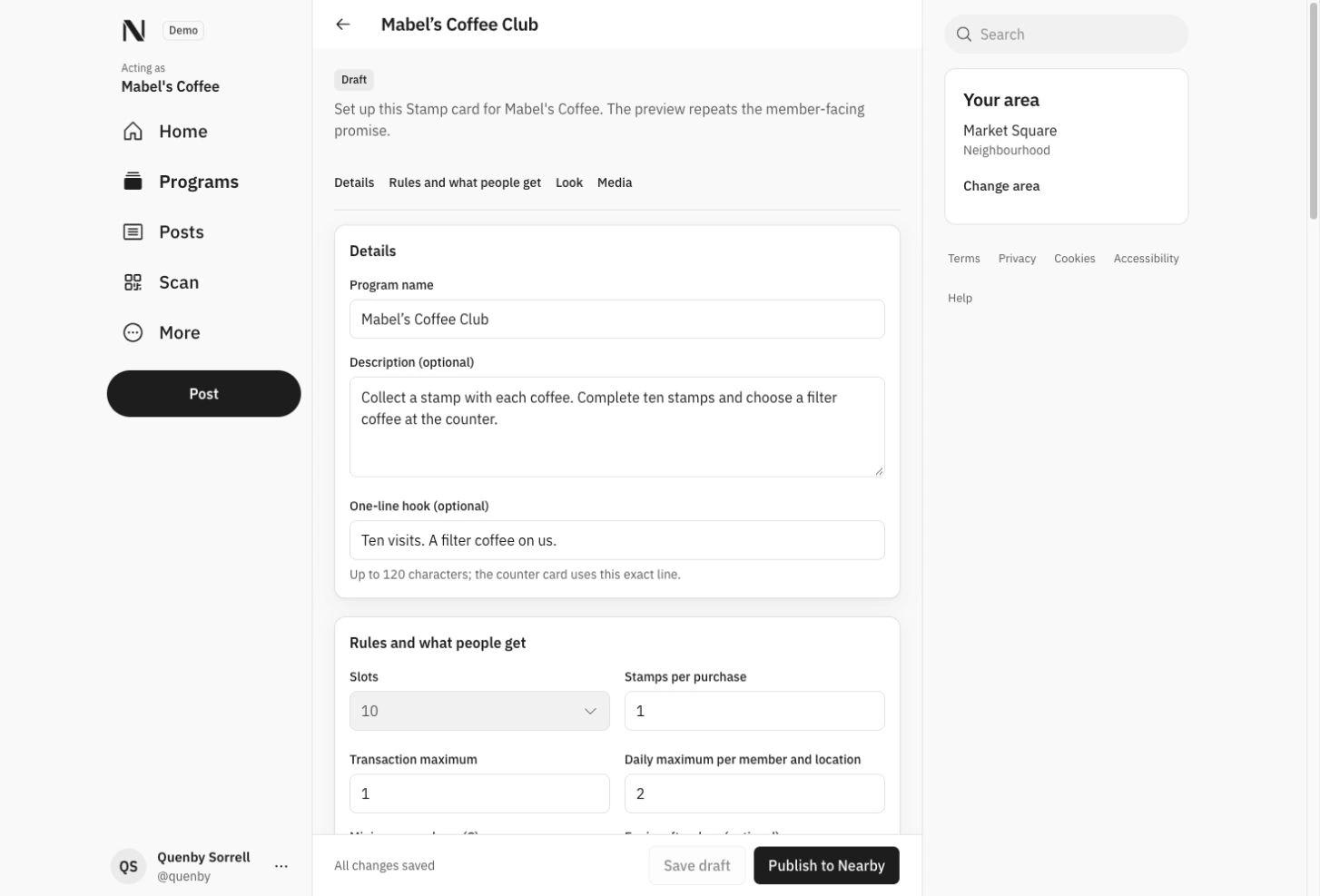
Start with the card’s promise
Mabel’s Coffee Club is a private draft. The owner sets the name, description, ten-stamp target and limits before publishing.
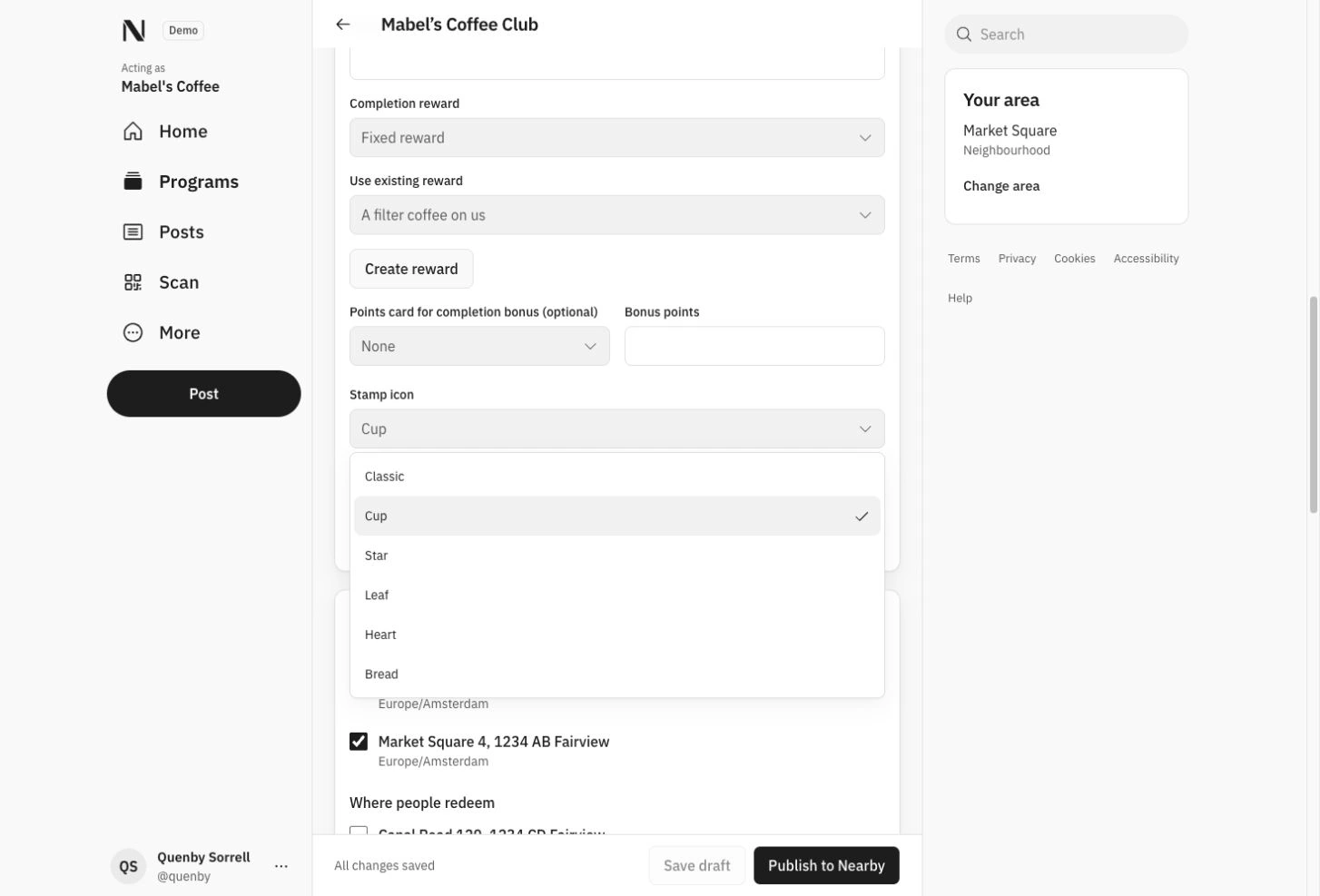
Choose the stamp style
The stamp chooser offers Classic, Cup, Star, Leaf, Heart and Bread. This draft uses Cup; its linked reward stays visible above the chooser.
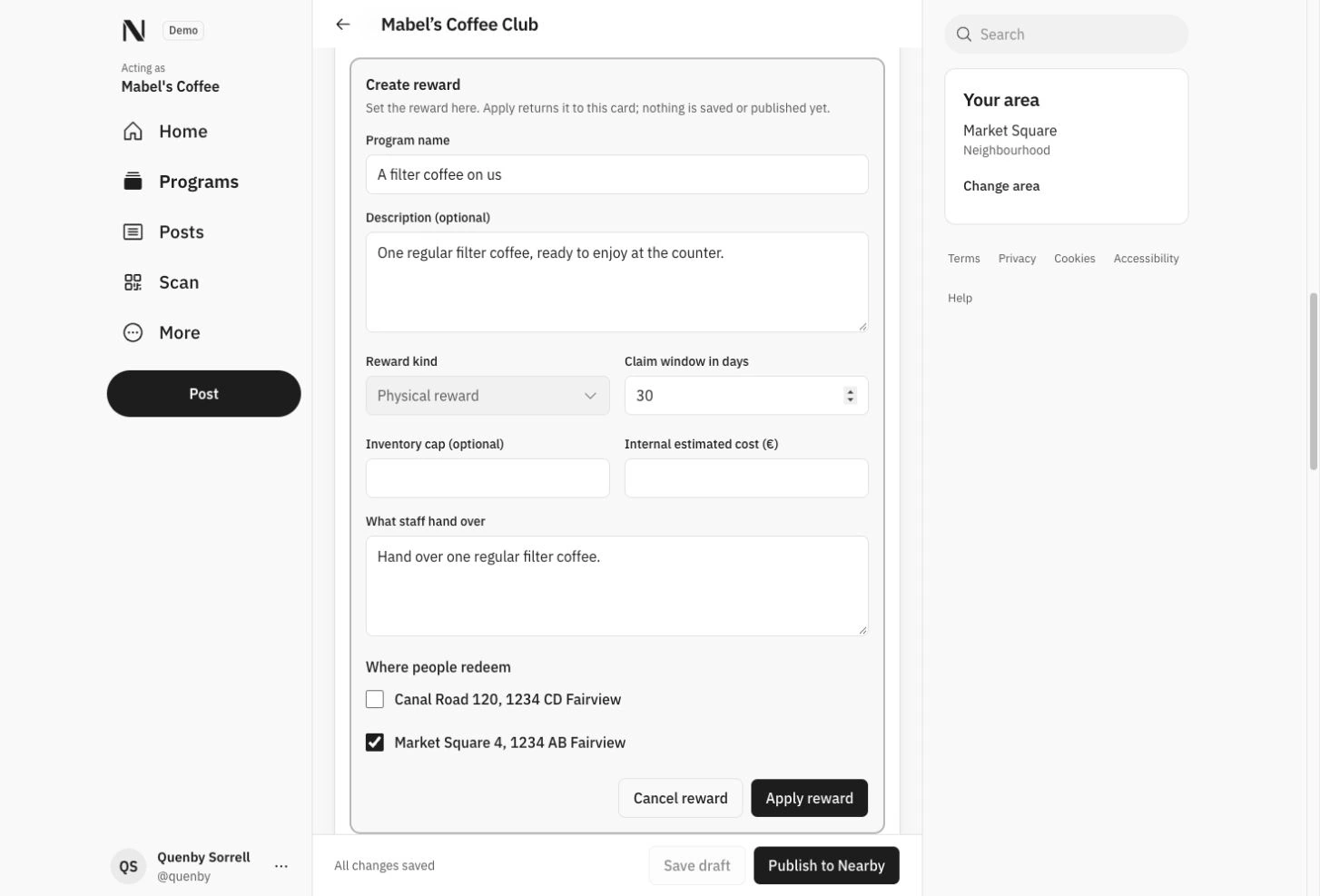
Create a reward inside the card
Set the reward’s name, when it can be claimed, what staff hand over and where it can be redeemed. Apply adds it to the card draft. Saving and publishing are separate actions.
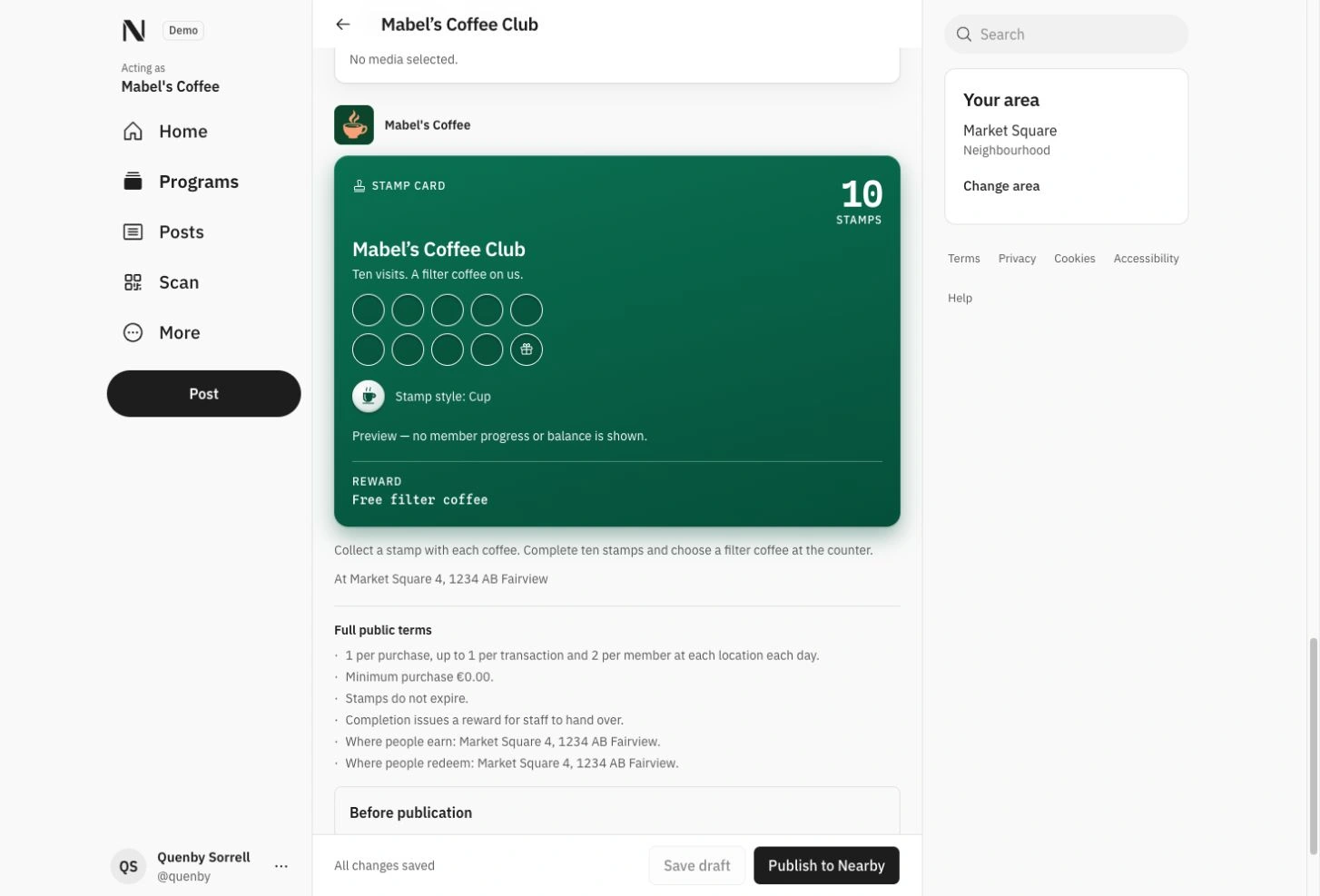
Check the card before publishing
The preview shows the chosen Cup stamp style, the reward and the terms. It shows no member balance or progress. The card and its linked reward remain unpublished drafts.
Browse all product screens
57 screens across the journeys and gallery · Desktop and phone · Light and dark
Select any screen to explore it in full.
Start with what is nearby.
Guests can browse without an account. Members follow businesses and each other, join conversations and share posts when reposting is available. A visit recorded by staff can make a member eligible to leave a star-rated review.
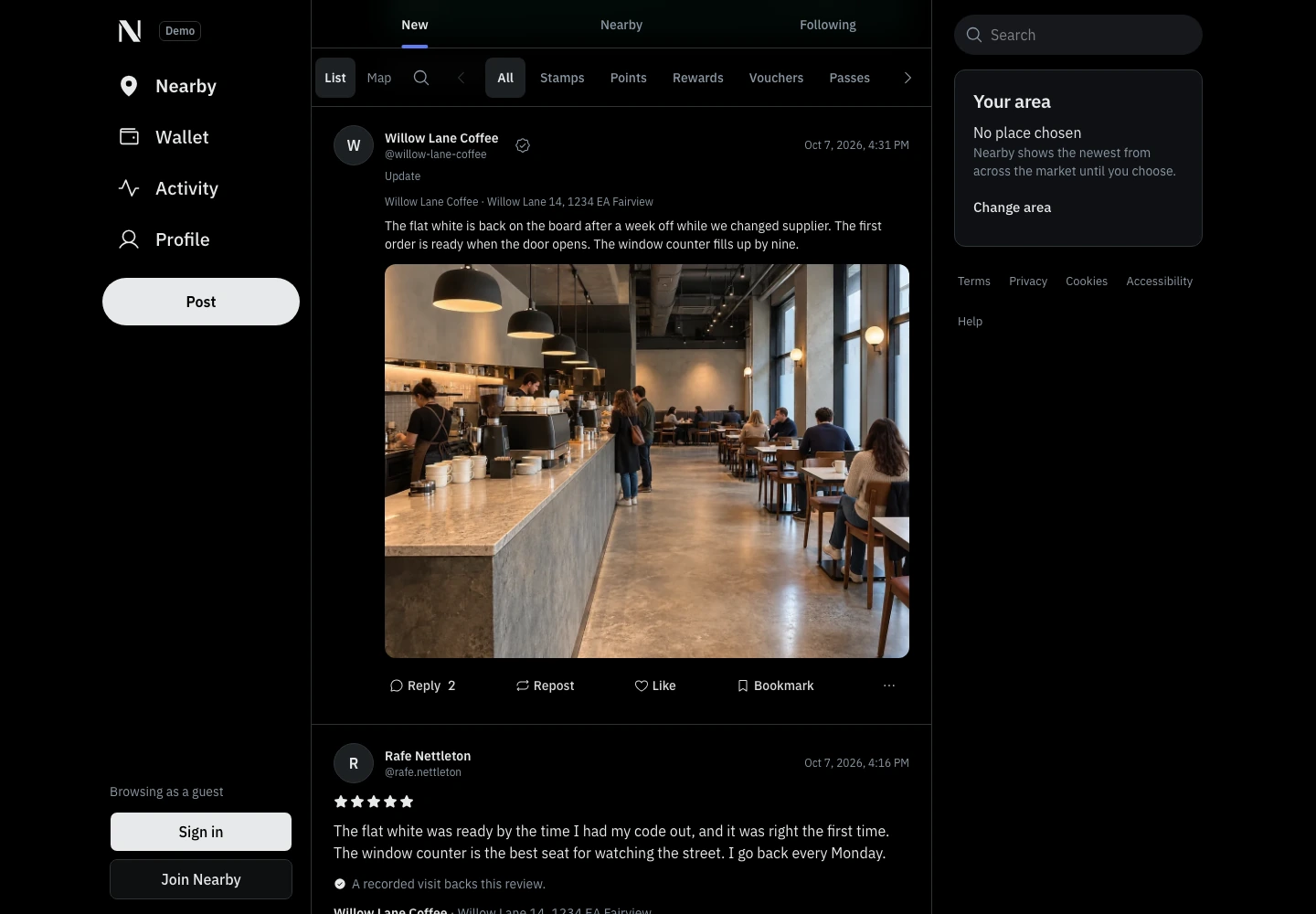
The local conversation
Business updates, photographs and reviews backed by visits recorded by staff share one feed. Guests can read before joining.
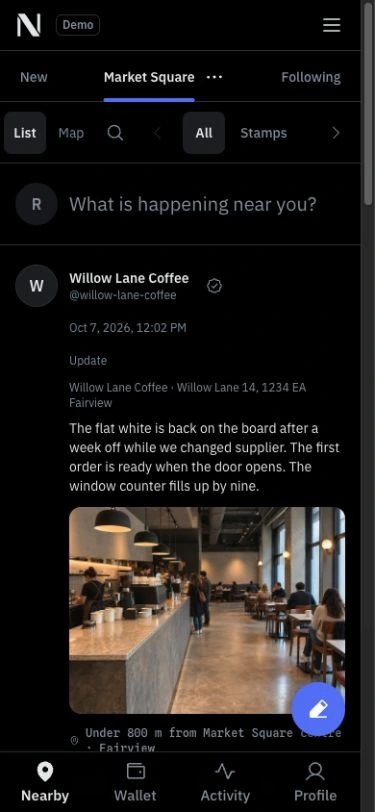
Browse from your chosen area
The selected area, distance and program filters stay above the feed. A member can also start a local update.
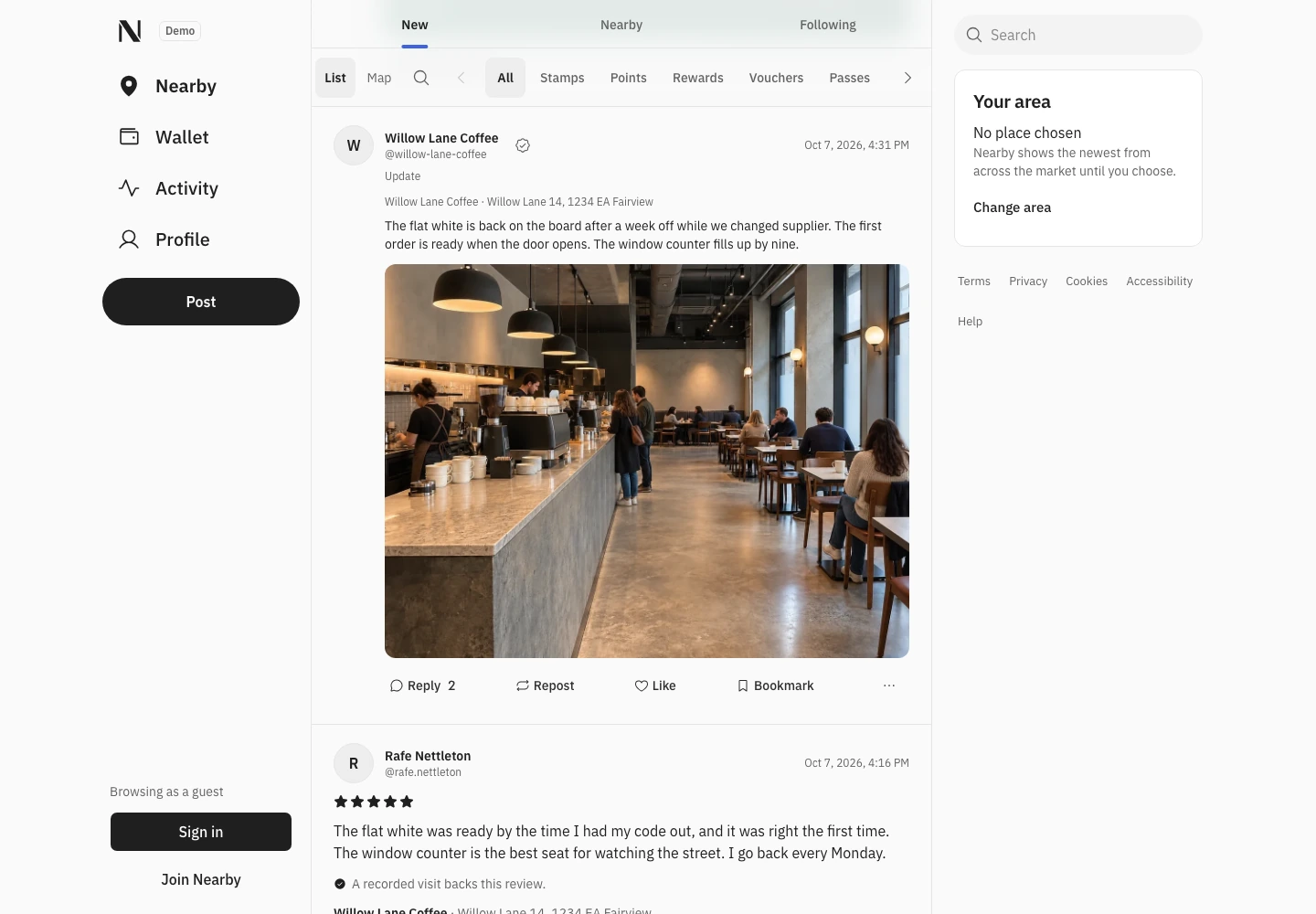
New, in order
The New feed lists available posts from newest to oldest. Nearby adds a view ranked from the area you choose.
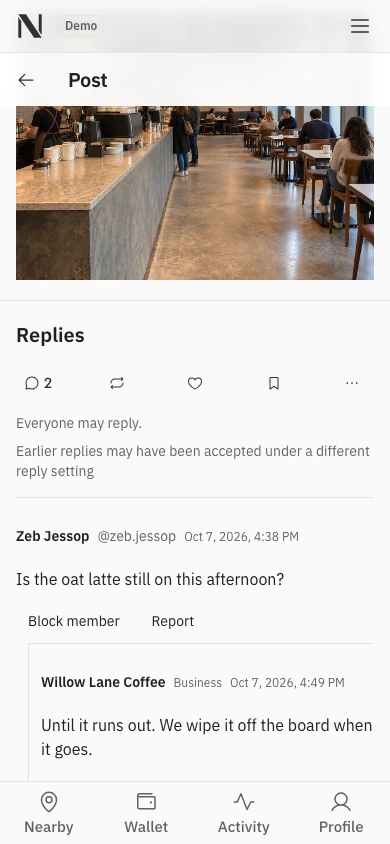
Ask before you visit
A customer asks about the café’s oat milk. The business answers in the post’s own conversation.
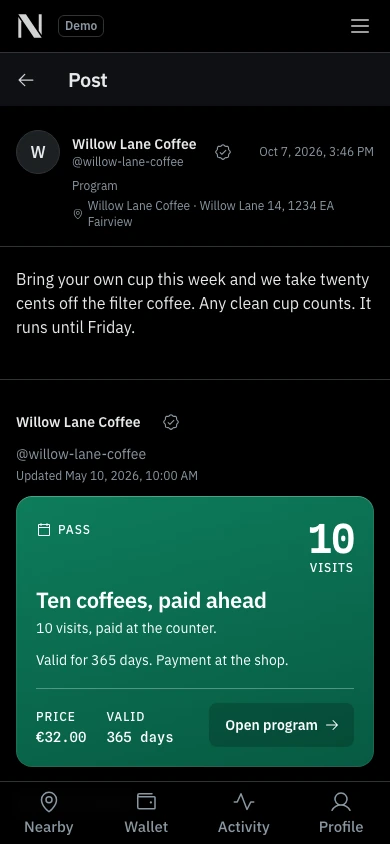
From a post to a program
A post can carry one program. The card opens its own details, conditions and conversation.
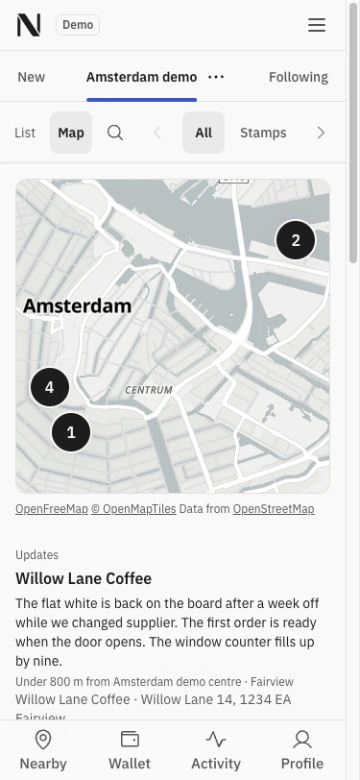
The city map on your phone
The same fictional locations on Amsterdam’s streets and canals. Open a pin to see the posts and loyalty programmes shown for that address.
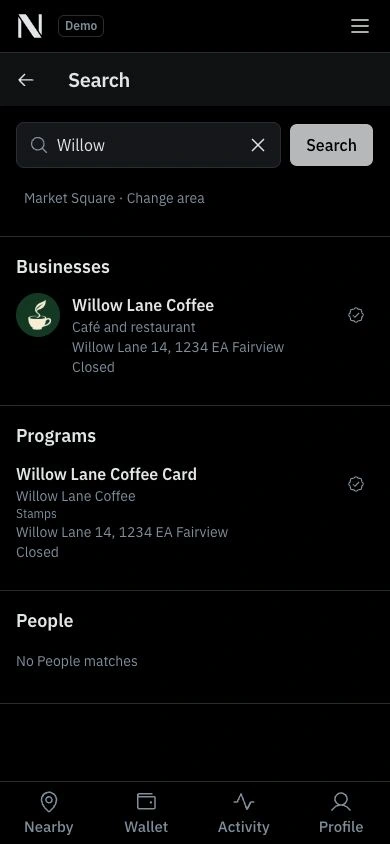
Find a shop or its card
A search for Willow returns the fictional café and its stamp card, with the selected area shown above the results.
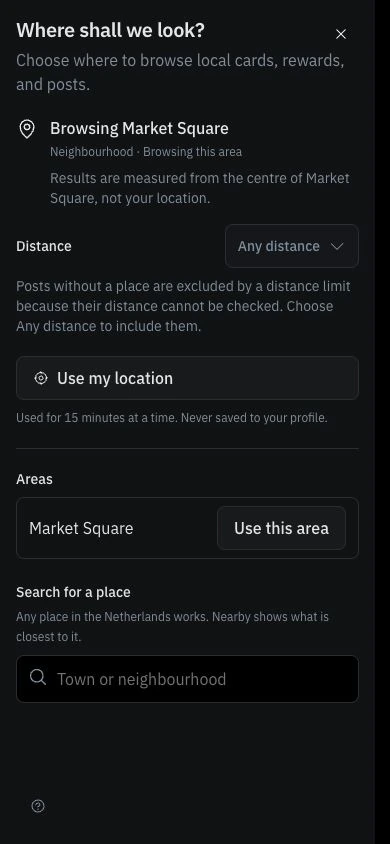
Choose where to look
Choose the area and distance you want to browse. Choosing an area does not add a location to the member’s profile.
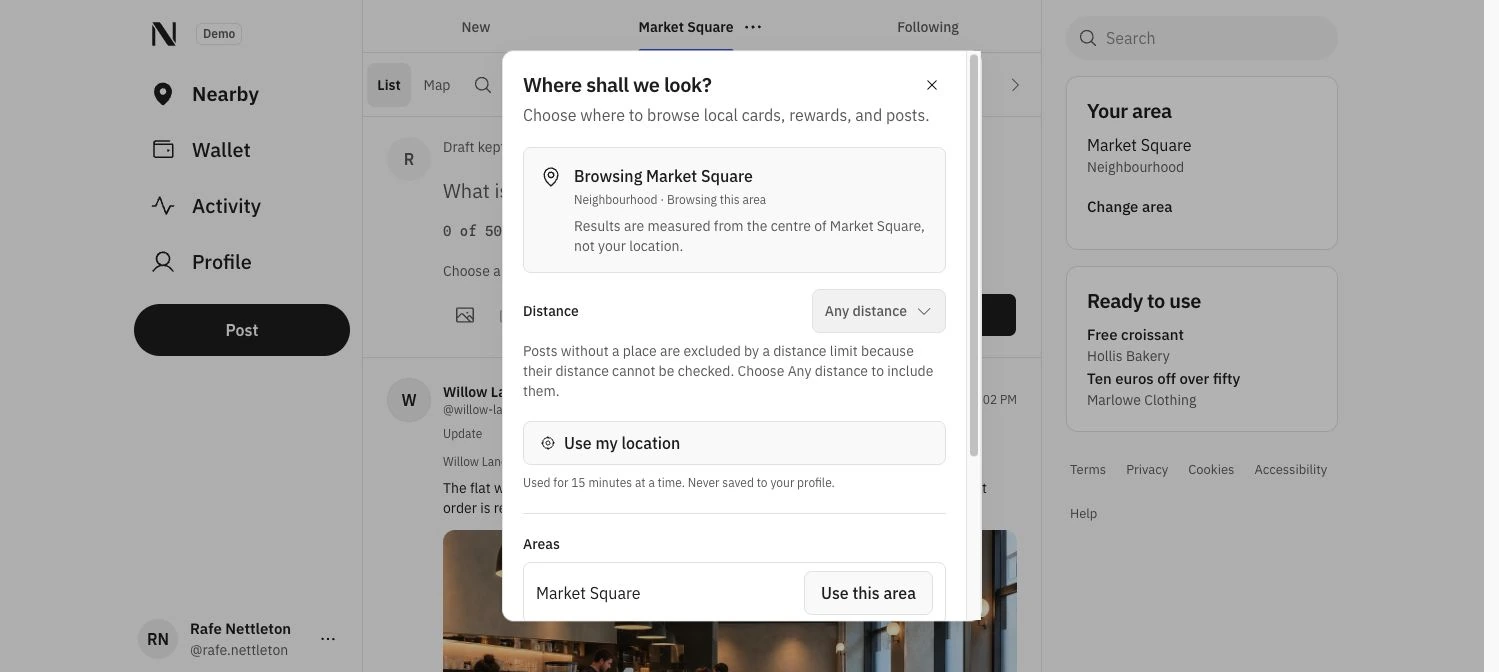
The area chooser, in context
On desktop the same chooser opens over the feed. The current area stays visible while the member considers another place or distance.
Profiles for people and businesses.
A member profile brings together a photo, cover, bio and public contributions. Followers and following lead to the people and businesses behind the conversation. Business profiles connect their updates, programs and practical details.
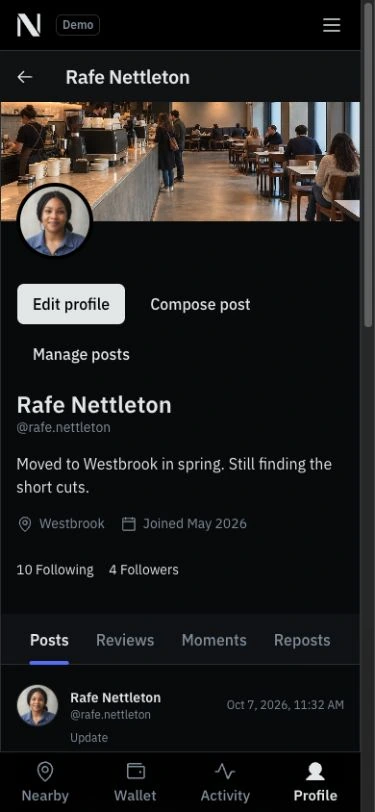
A profile with a point of view
Rafe’s cover, photo and bio sit above public posts. Following and Followers open the member’s connections; the wallet remains private.
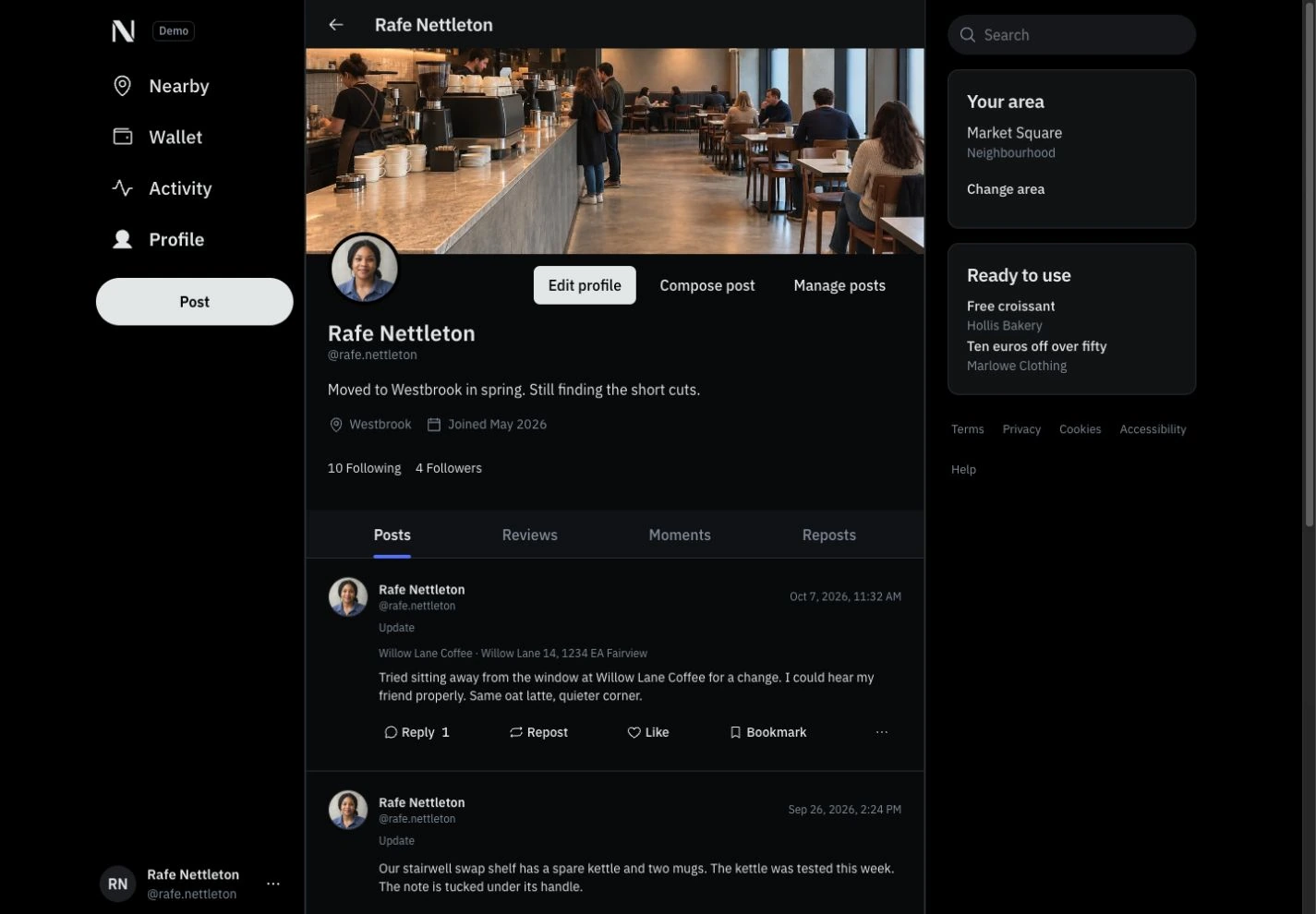
The member profile, on desktop
The wider layout gives the cover room and keeps posts, reviews, moments and reposts in their own tabs. Rafe can edit the profile or write a new post.
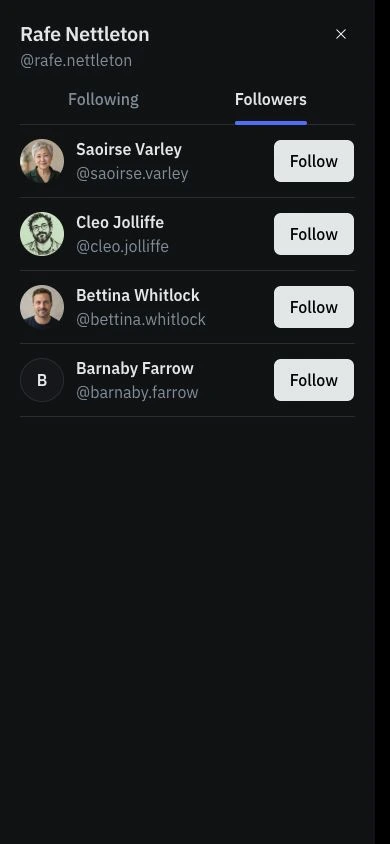
See who follows
The Followers view lists public profiles with a direct Follow action. A person’s name opens their profile.
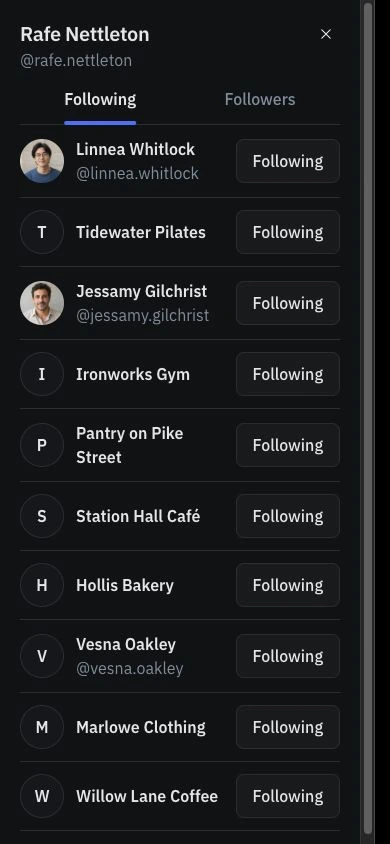
People and businesses, together
Following includes both members and businesses. The selected Following control makes each relationship clear.
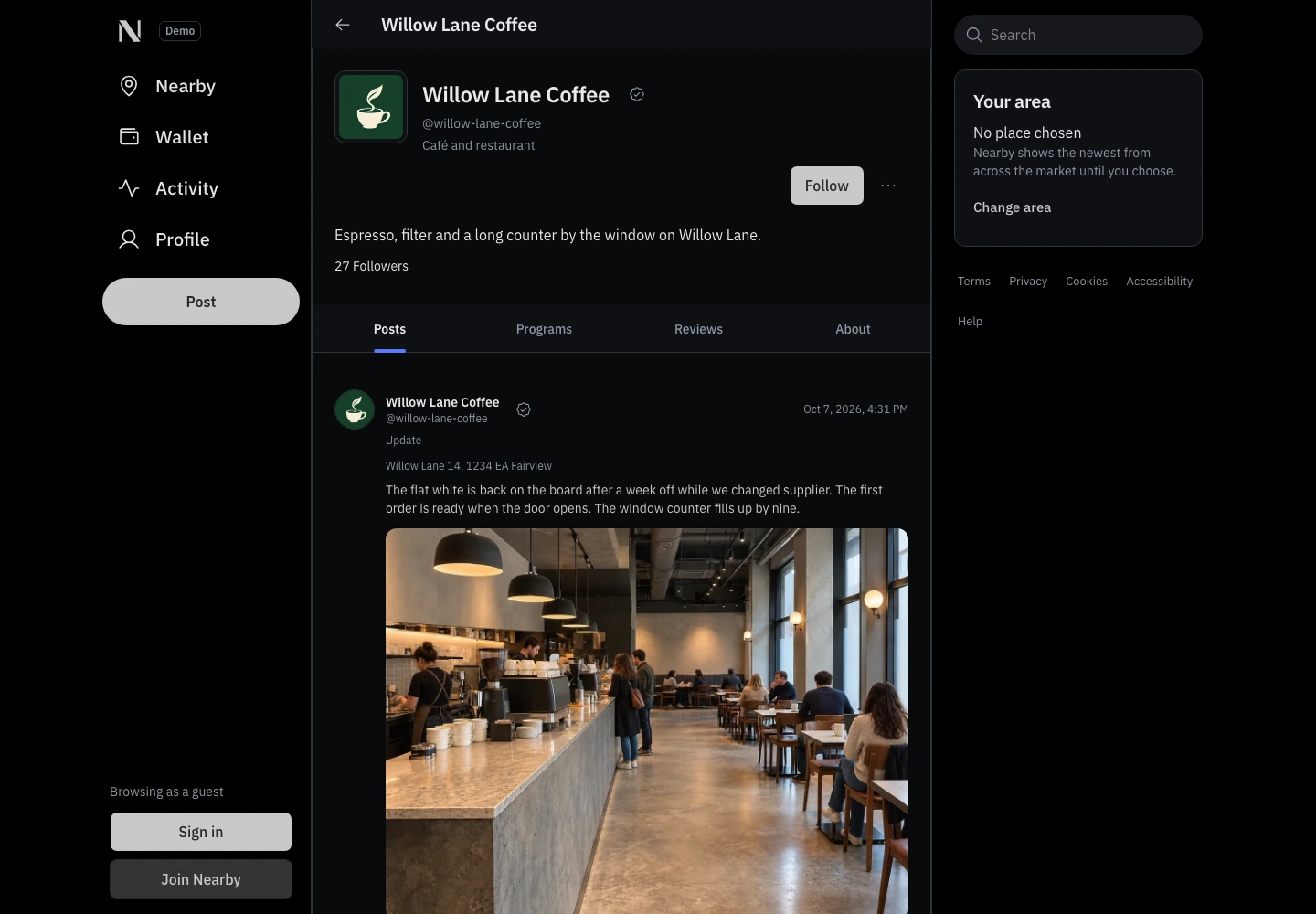
The business in context
A clear profile, a Follow action and the business’s own updates give people a reason to return.
From a thought to a public post.
When writing a post, you can add a public location and media, and choose who can reply. Members publish in their own name. Staff publish as their business.
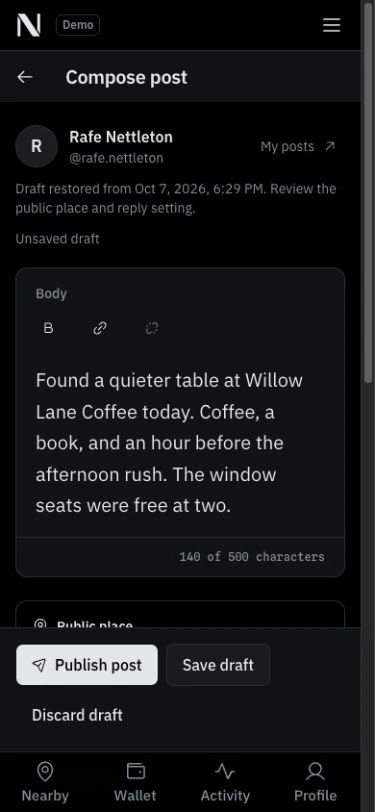
Room to write, on a phone
The post editor gives the post its own writing surface, formatting controls and character count. Publish and Save draft stay within reach.
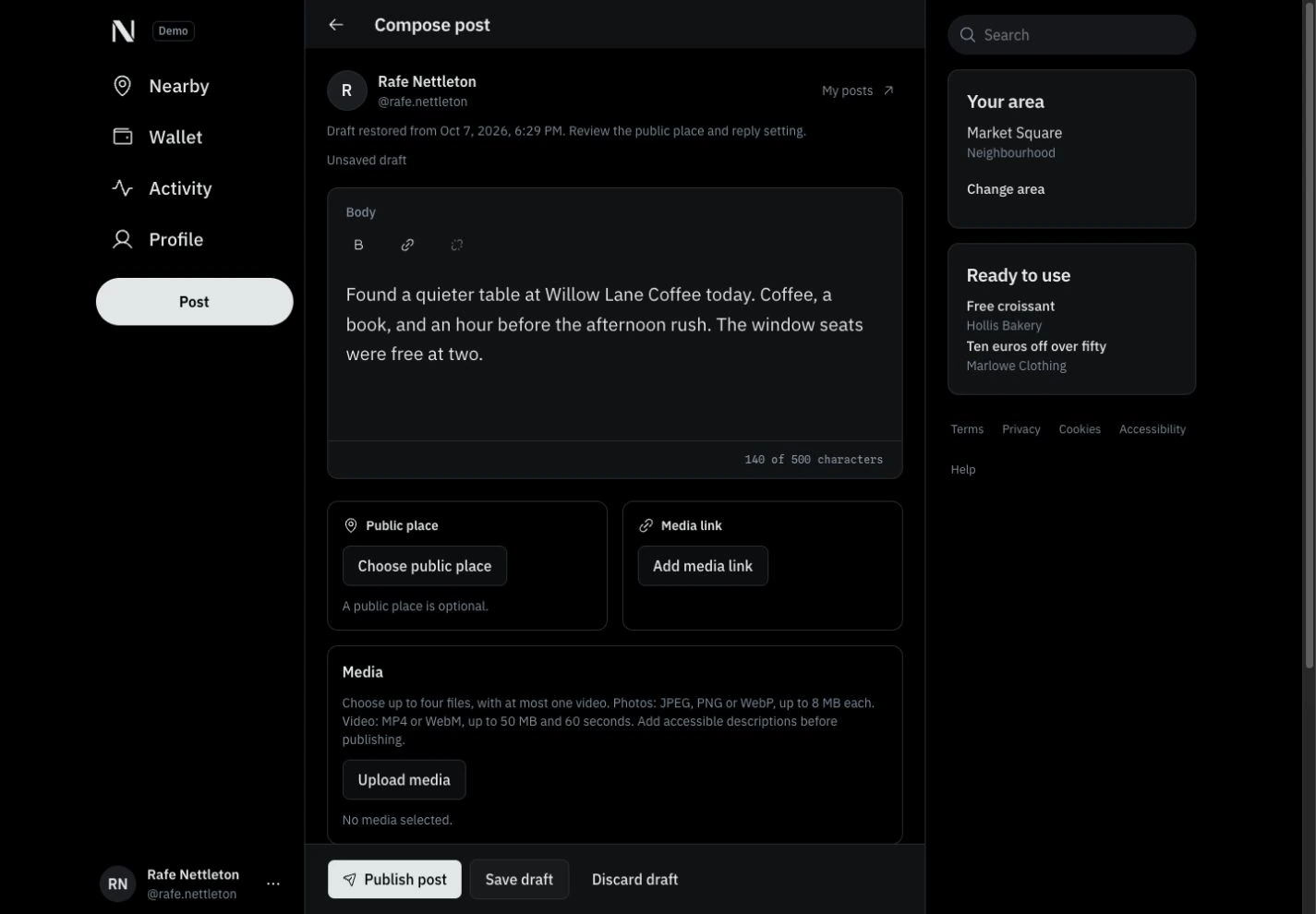
Write and review an update.
Rafe writes the post under their own name. The form groups the words, optional public location and media controls, with a preview before publication.
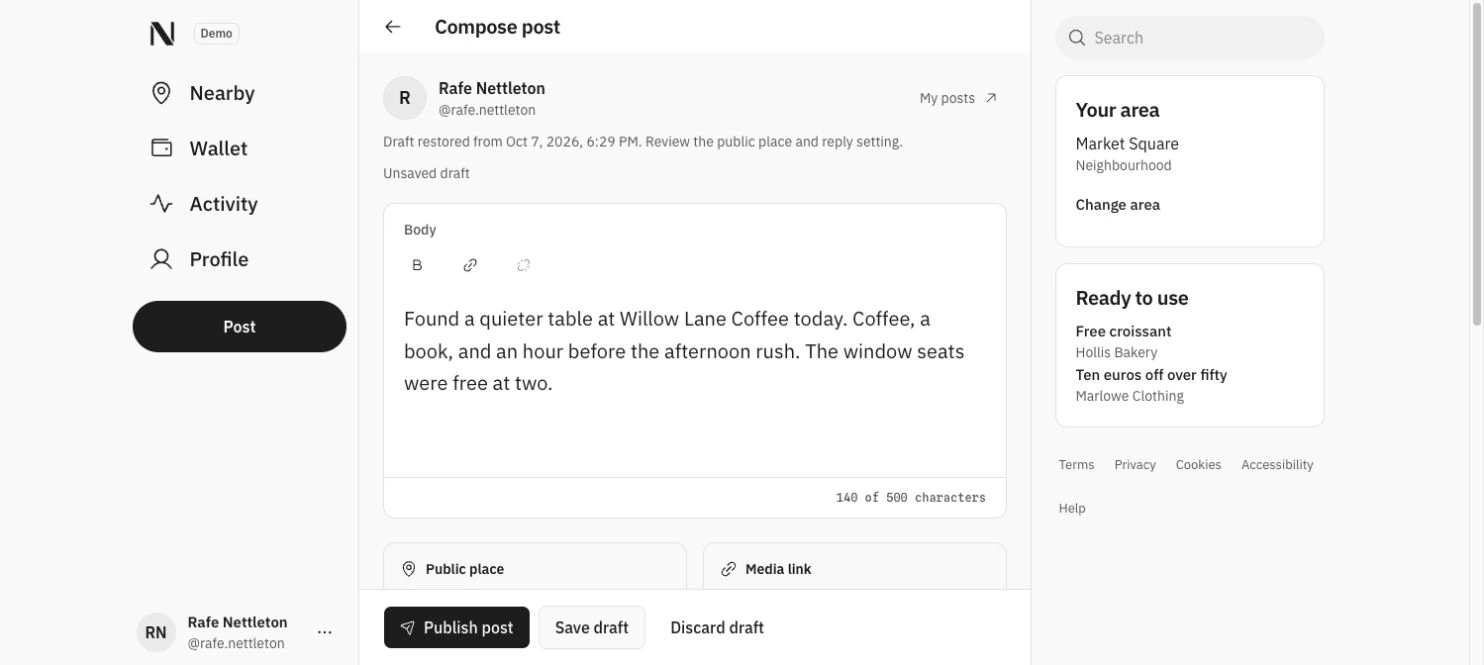
The post editor in the light theme
The author stays visible above the post. A saved draft can be continued later; publishing uses the same deliberate final action in either theme.
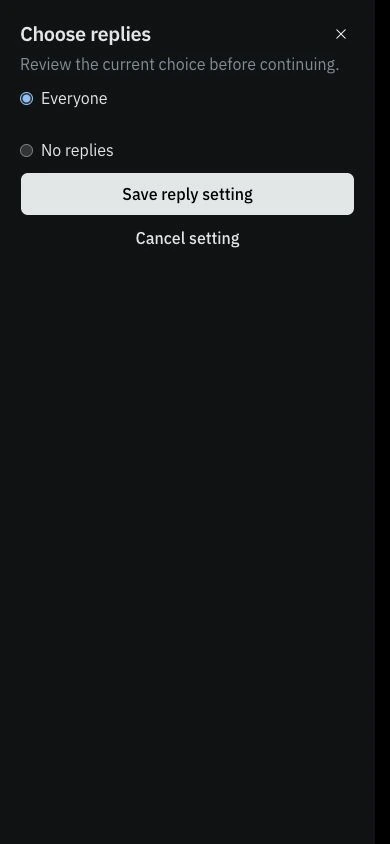
Decide who can reply
The phone reply chooser opens as a full-screen dialog. Rafe can allow everyone or close new replies, then save the setting and return to the draft.
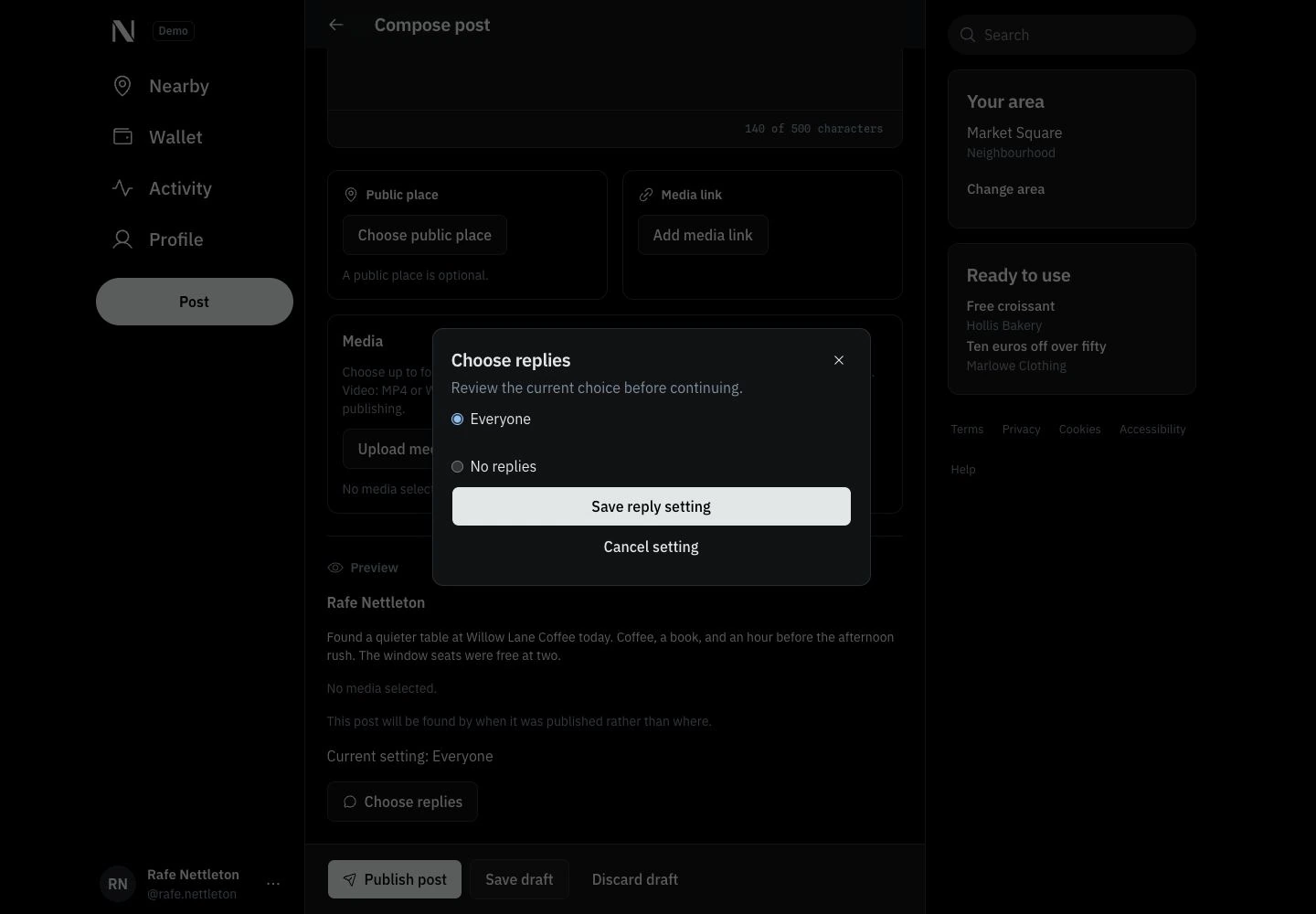
A focused choice over the draft
The desktop reply chooser keeps the draft visible underneath. Save applies the choice; Cancel returns without changing it.
Five kinds of loyalty in one wallet.
Stamp cards, points cards, rewards, vouchers and passes each keep their own rules. The member sees what they have, what they can use and where to use it.
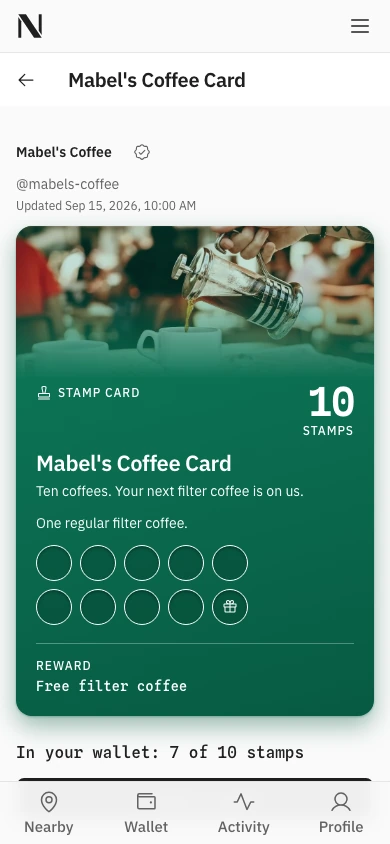
Stamp cards
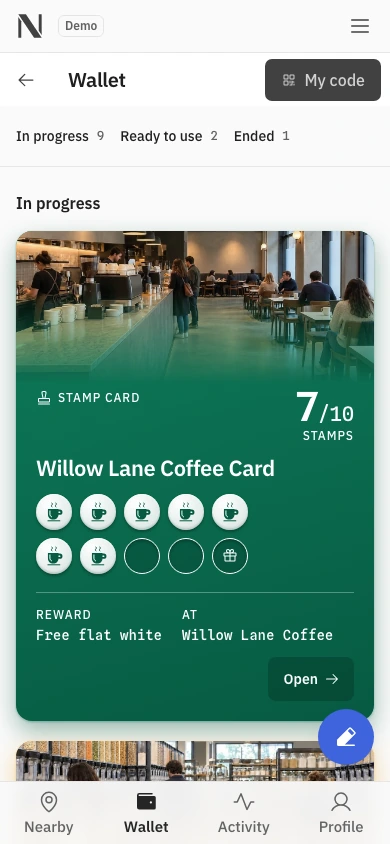
A visible path to the next reward, with the business, progress and reward on the card.
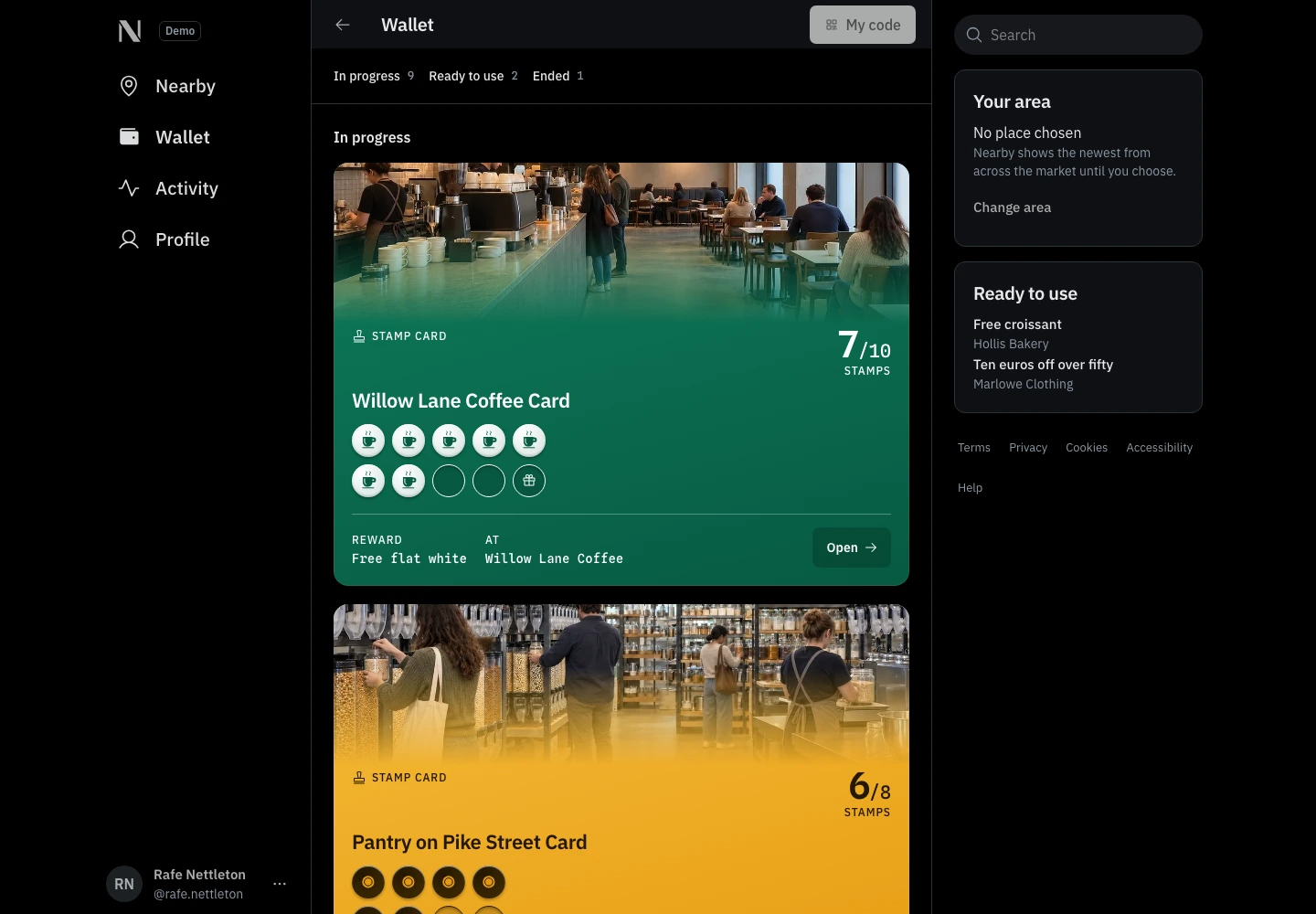
Progress you can see
The wallet separates cards in progress, items ready to use and items that are no longer active. Each section has a direct link.
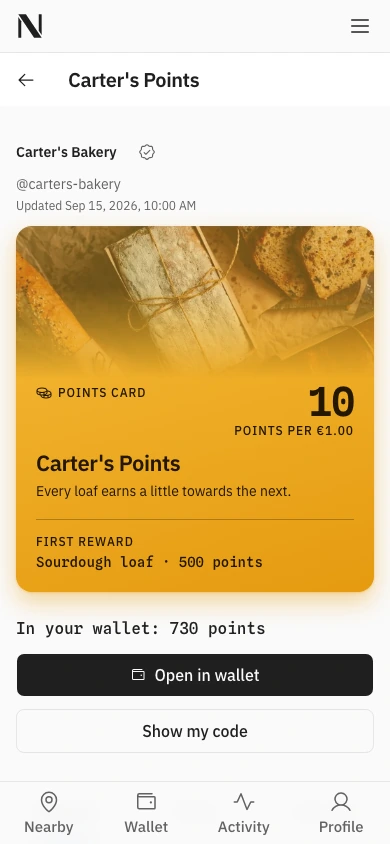
Points cards
A points balance belongs to its issuing business. Members can inspect earning rules and available rewards.
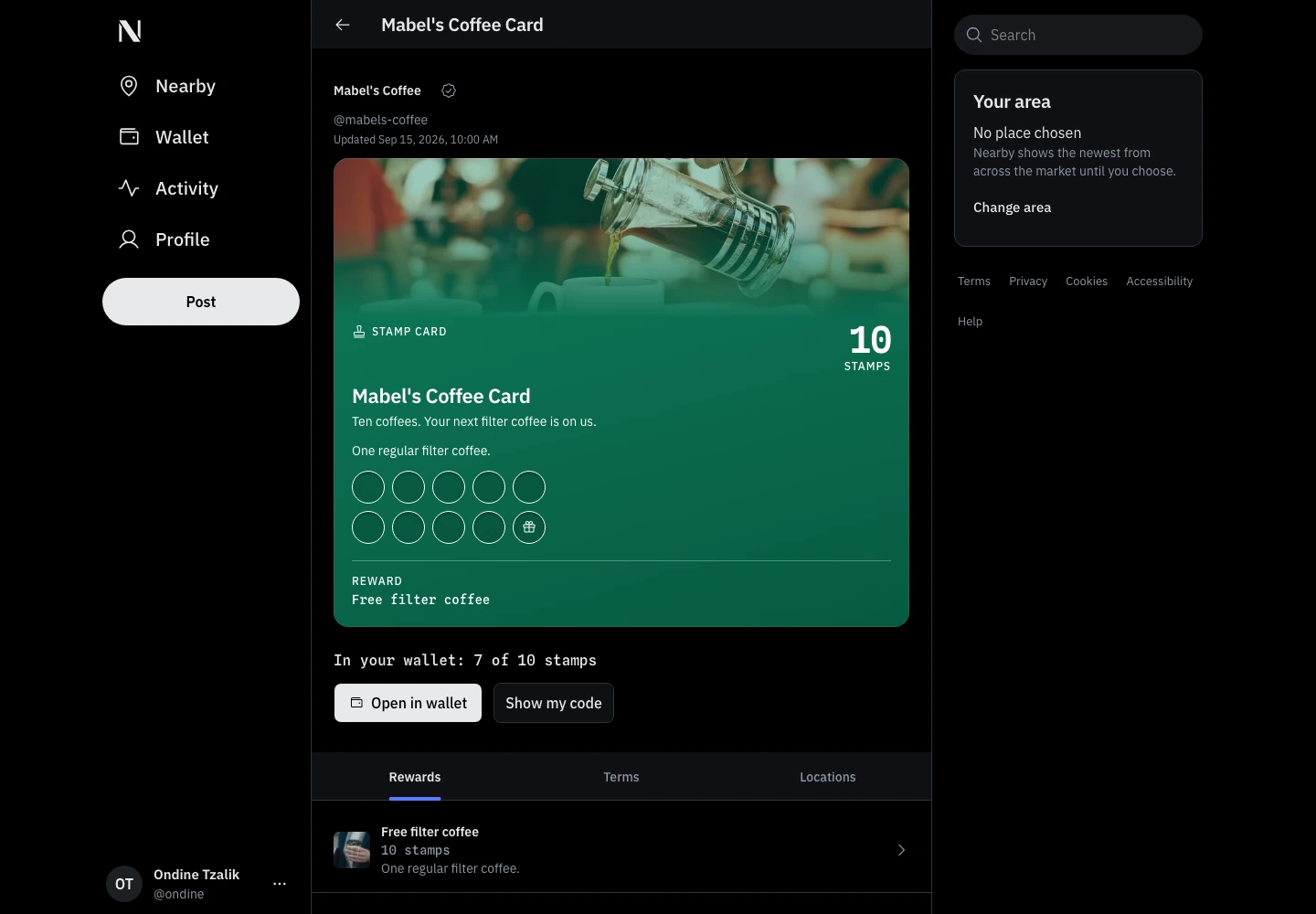
Stamp cards
A visible path to the next reward, with the business, progress and reward on the card.
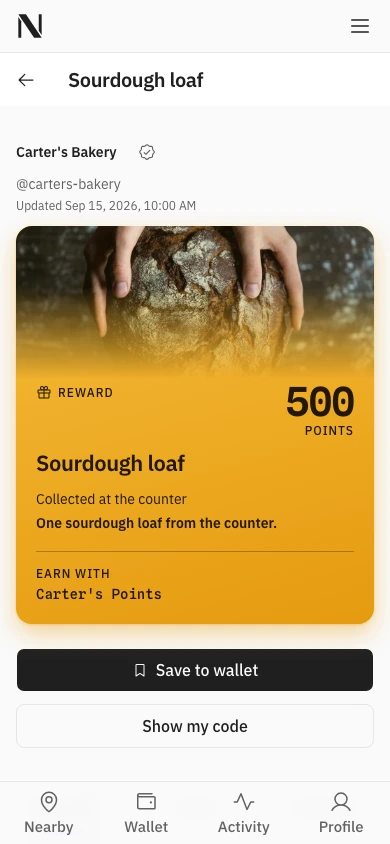
Rewards
A reward shows what it costs in points and which card earns those points.
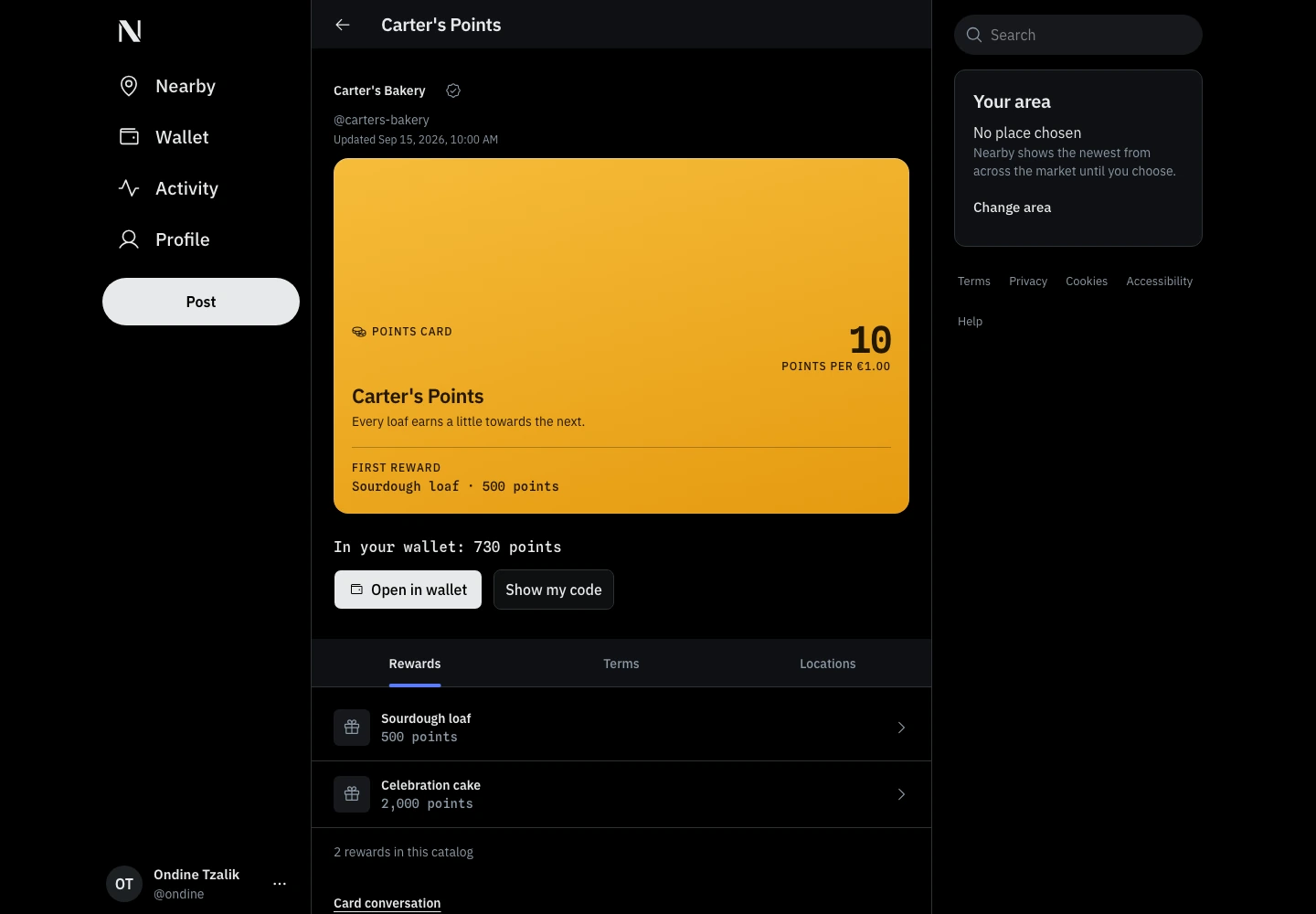
Points cards
A points balance belongs to its issuing business. Members can inspect earning rules and available rewards.
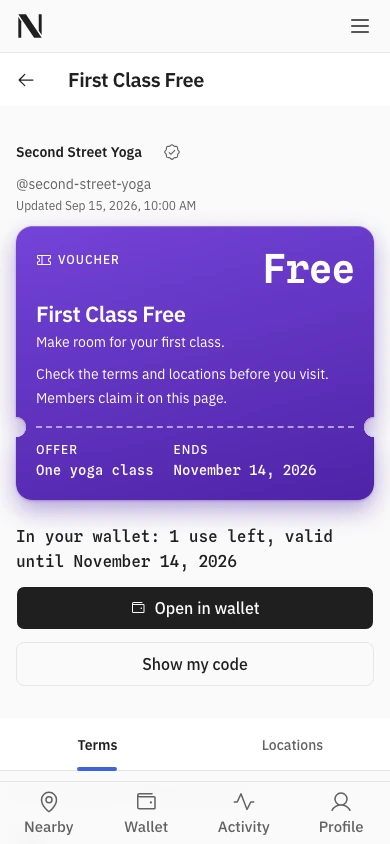
Vouchers
The offer, remaining use and deadline travel with the voucher.
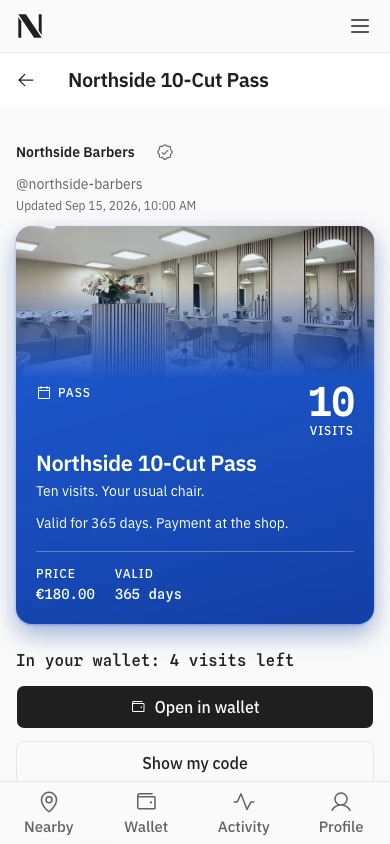
Passes
A visit pack shows how many visits it allows and when it can be used. Time passes have their own duration and conditions.
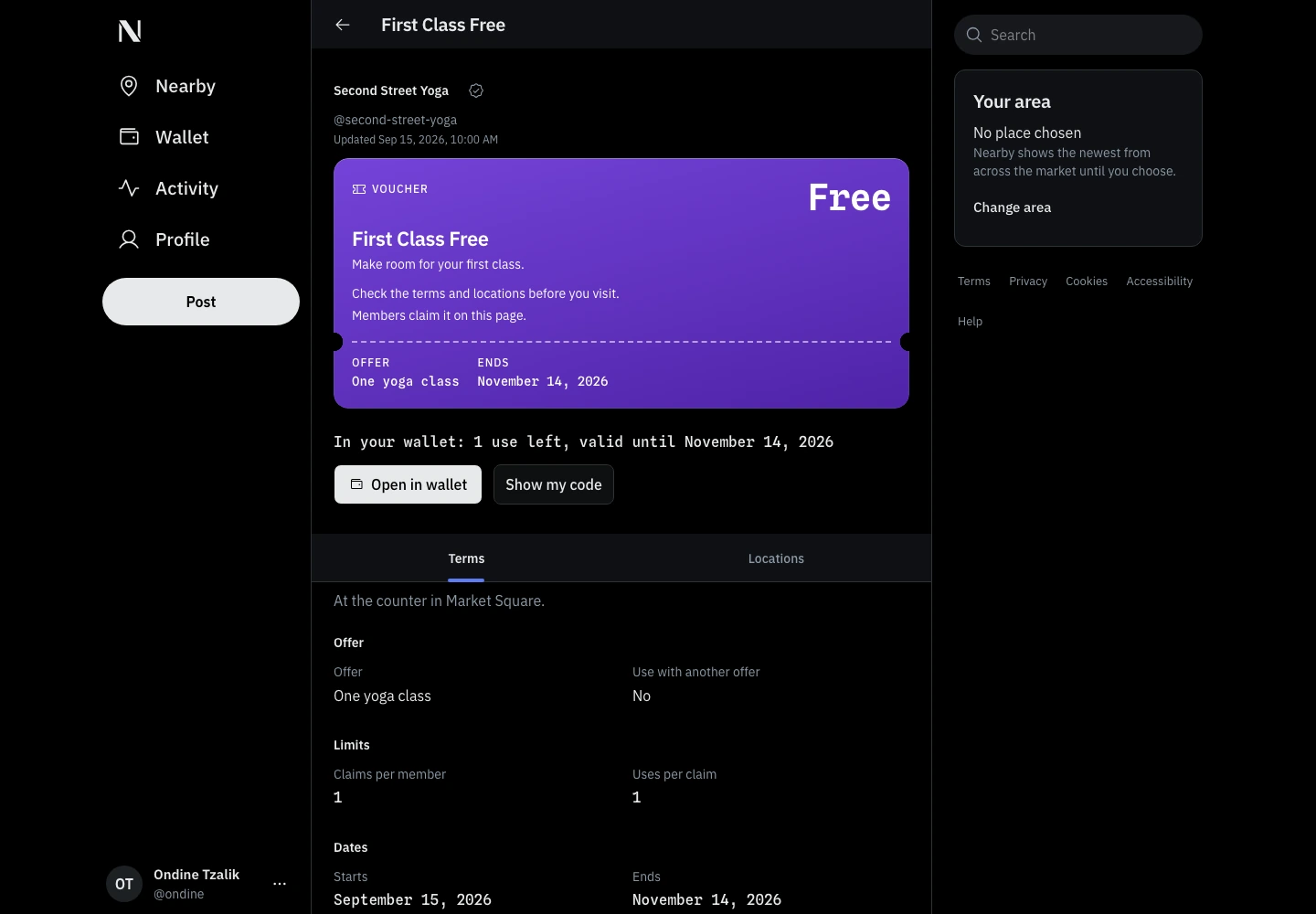
Vouchers
The offer, remaining use and deadline travel with the voucher.
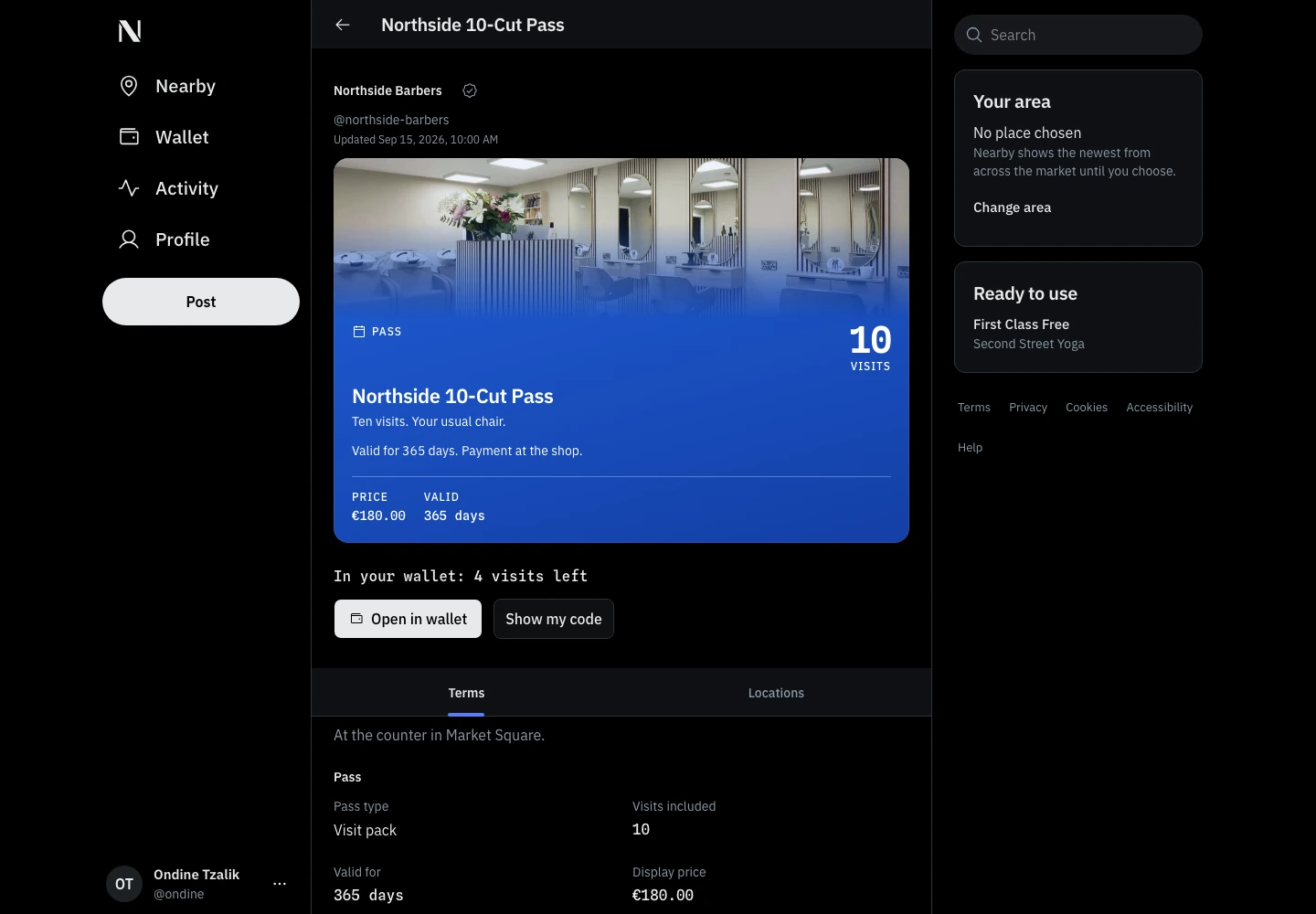
Passes
A visit pack shows how many visits it allows and when it can be used. Time passes have their own duration and conditions.
The visit, from both sides.
The member shows a code. Staff identify the member at their own business, check the available action and record it. The result reaches the open wallet.
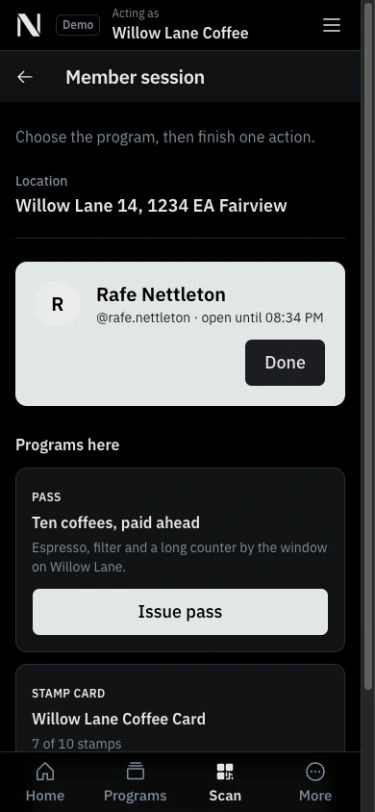
The counter fits in one hand
After identifying the member, staff can check their loyalty progress for the business and record an action on a phone.
Manage loyalty programmes, posts and staff.
Owners manage programs and posts alongside their locations and team. Staff use the tools allowed for their role at the business they are working for.
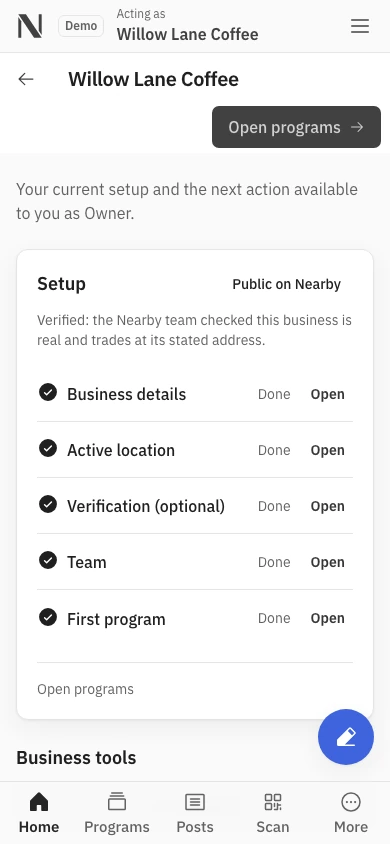
The business on a phone
Owners keep the same business tools when they are away from a desk. The active business stays visible.
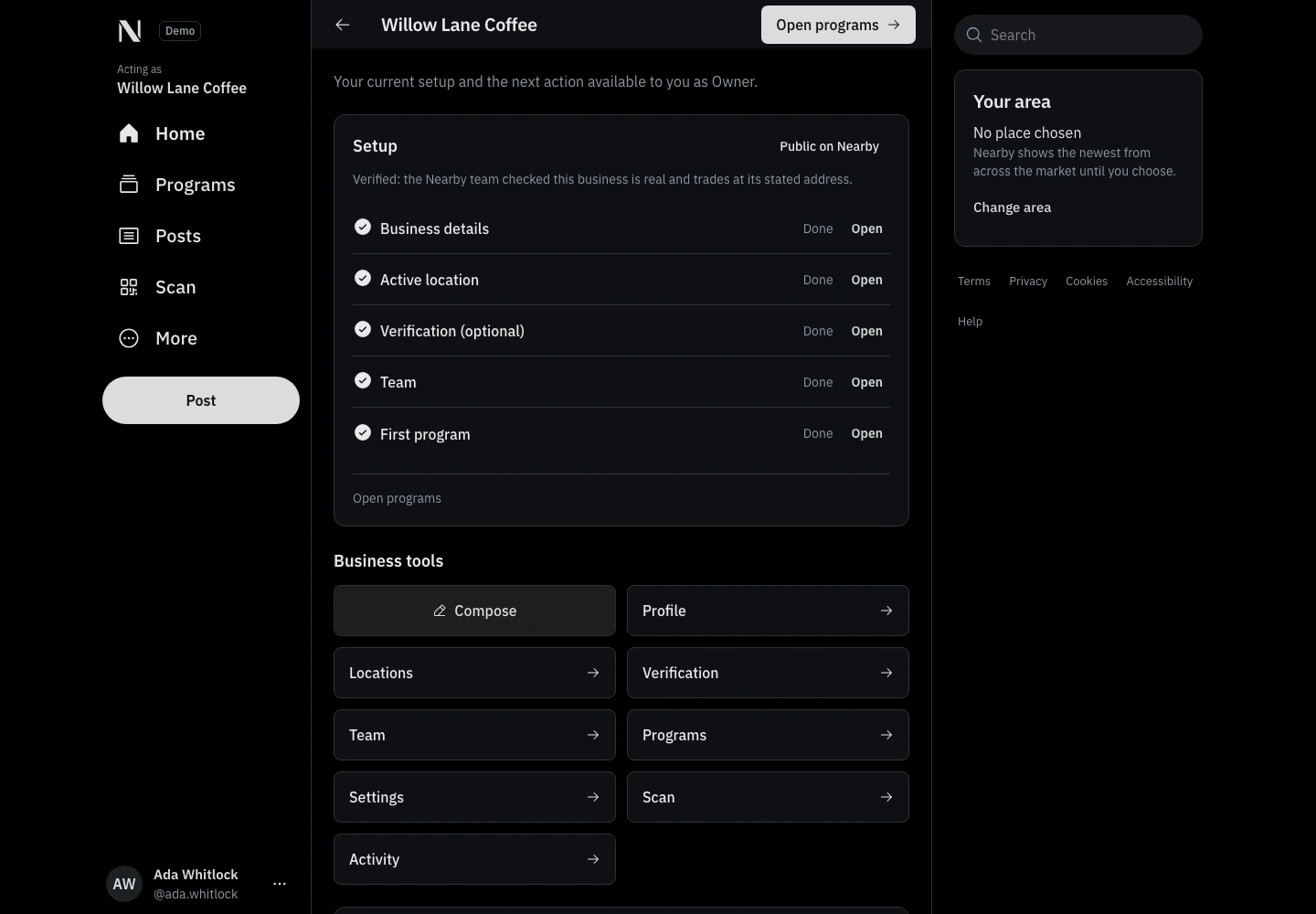
The owner’s workspace
Setup status and direct access to programs, posts, locations and team controls keep the next task visible.
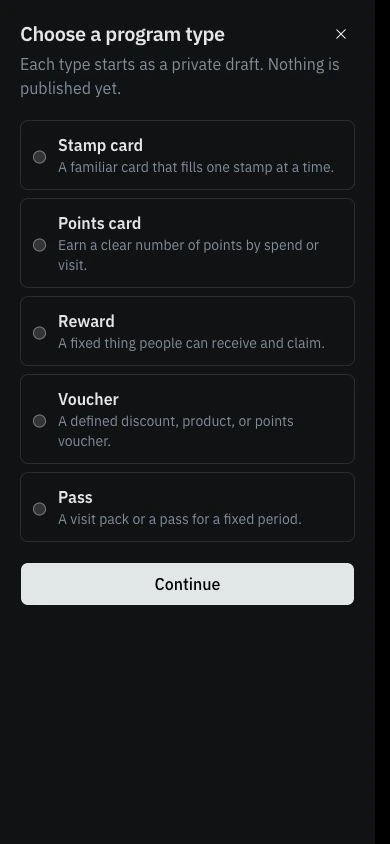
Choose the kind of program
Stamp card, points card, reward, voucher or pass: all five start in the same chooser. Selecting a type leads to its rules and presentation.
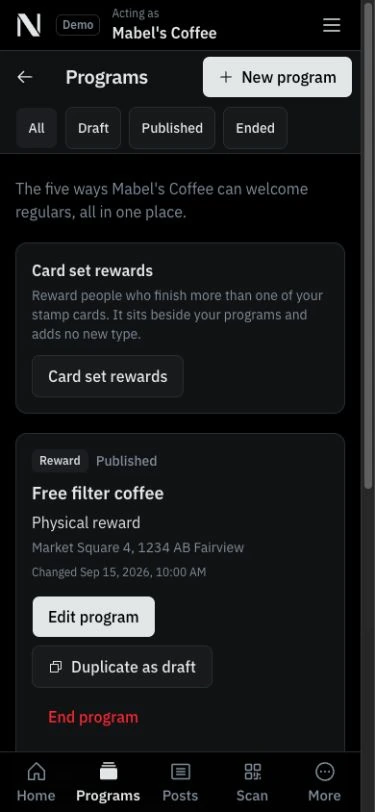
Manage the programs already running
The owner sees Mabel’s published cards and rewards, their status and their locations, then opens a program to manage it.
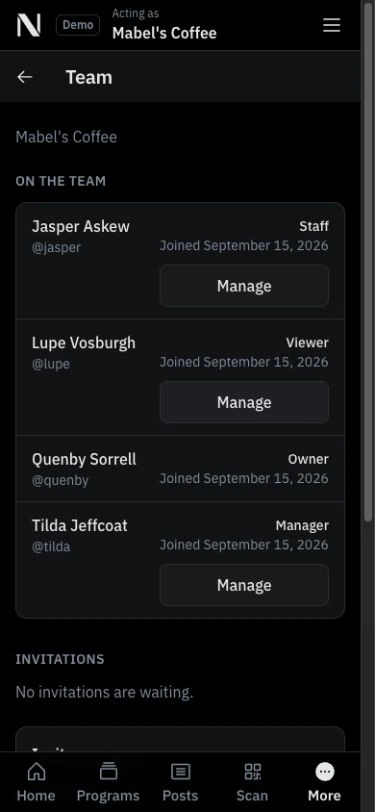
A team with distinct roles
Owners, managers, staff and viewers appear in one team list. Each membership carries its own permissions.
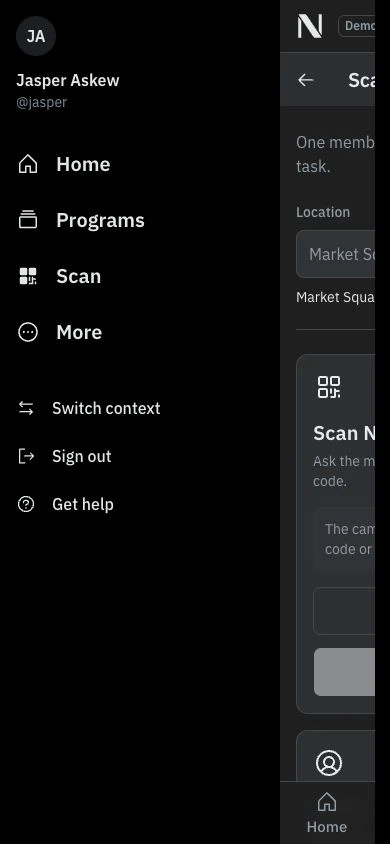
The staff menu, open
Jasper’s menu names Mabel’s Coffee and the Staff role. Scan is close at hand; Switch context leads back to a personal account or another permitted role.
Terms and account controls.
People can check a card’s conditions, find its locations and reach their own settings. The phone navigation keeps those destinations close.
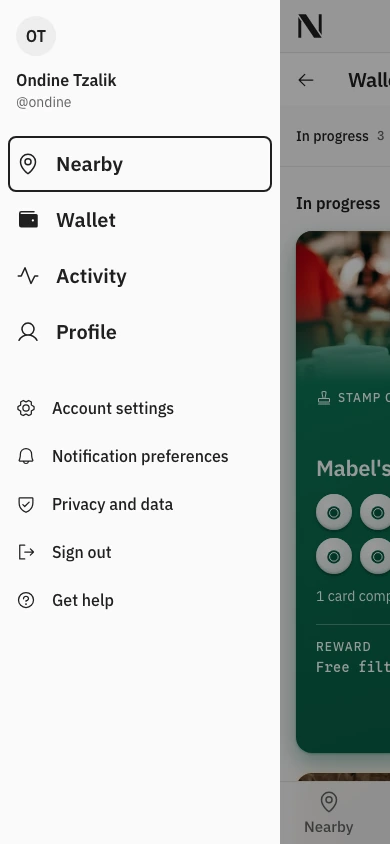
The phone menu, open
The main destinations stay together. Account settings, notification preferences and privacy controls sit below them.
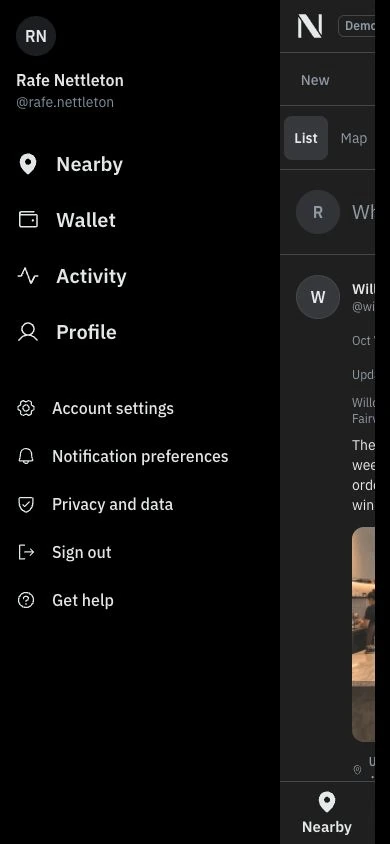
Navigation after dark
The same phone menu in the dark theme, with the current member’s identity at the top.
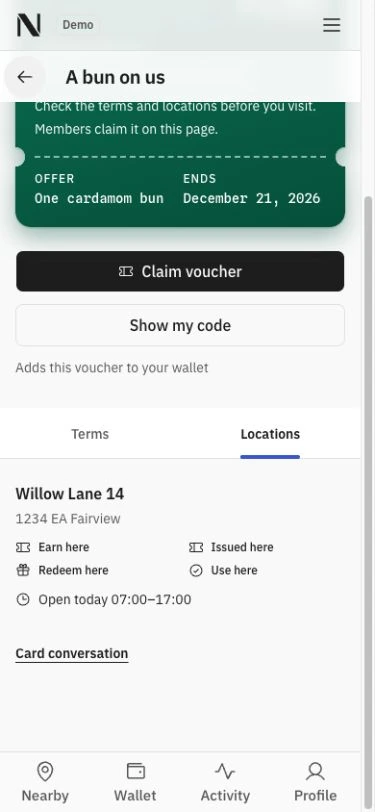
Know where to use it
The Locations tab shows the address, opening hours and which actions this location supports.
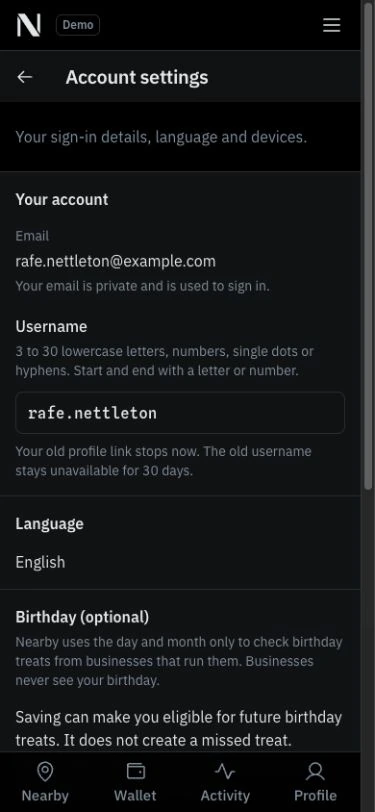
Account details, in one place
The member can reach email, username, language and optional birthday settings from the phone menu.
Network operators review reports.
Operators have a separate workspace for verification, reports and support. Moderation decisions carry a reason. A business staff role does not give access to the network’s verification, reports and support tools.
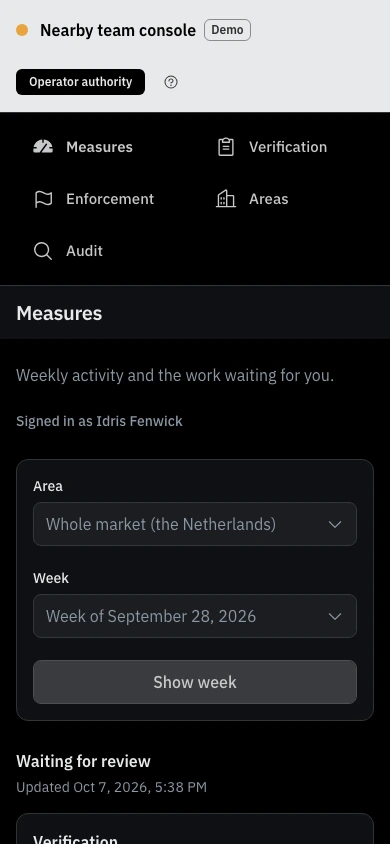
Operations on a phone
The operator can reach the same review queues from a phone. This authority is separate from a business’s staff access.
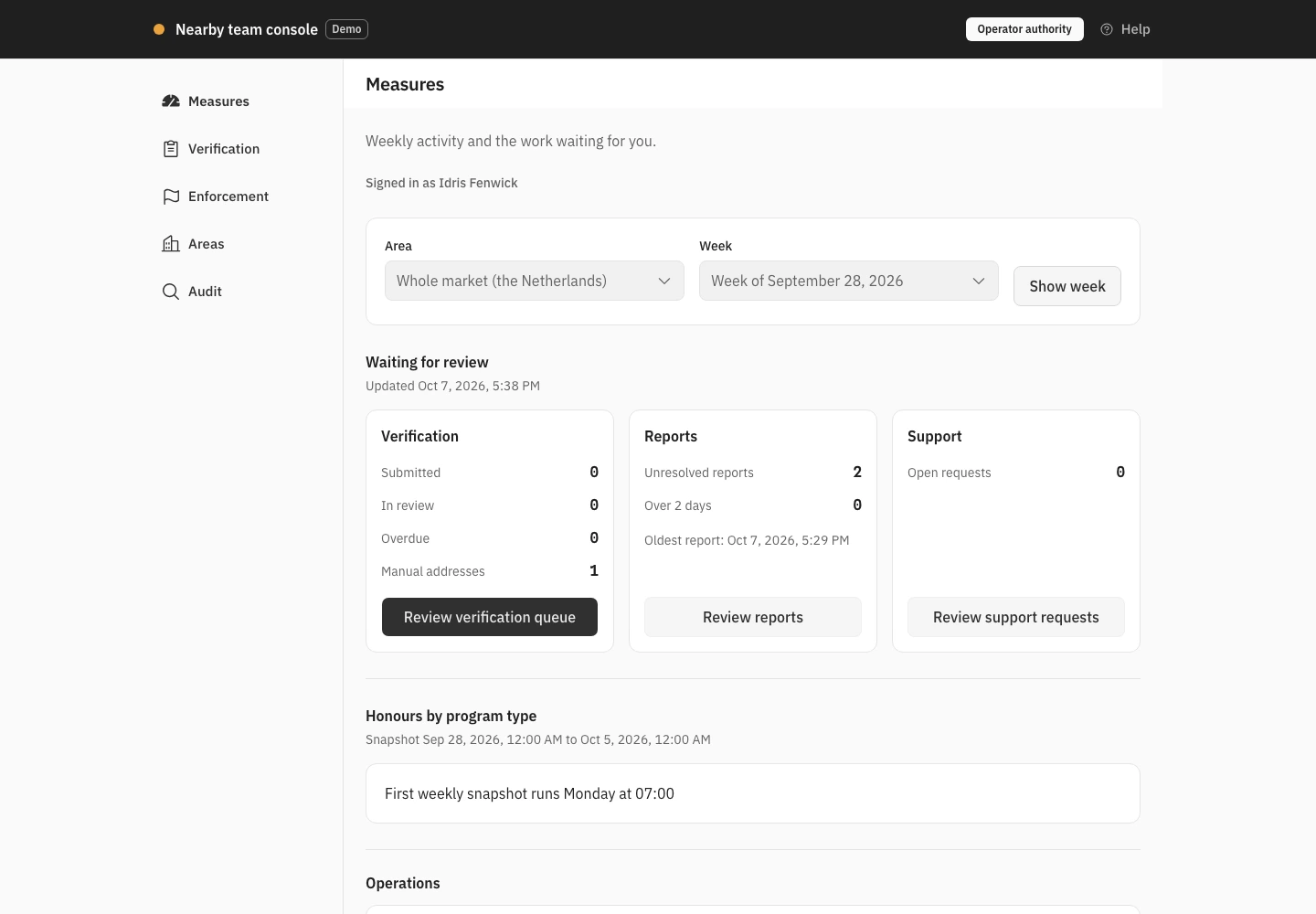
The operator’s overview
Network operators see work waiting in verification, reports and support, then open the relevant queue.
[email protected]
Eindhoven region, the Netherlands · CETTell us about your company, the opportunity you see in the social loyalty network and what you would bring to a collaboration. Enquiries sent from a company email address get priority.
Different counters. One member wallet.
A coffee stamp, points at a shop and a studio pass keep their own rules. The member carries them together. Points belong to the business that issued them.
A café
Offer a stamp card for repeat visits. Staff add the stamp at the counter; the customer sees their progress in the wallet.
See the cards→A local shop
Award points and let customers choose from the rewards you offer. A voucher keeps its own expiry and conditions.
See points and vouchers→A studio
Use a visit pack or a time pass. Staff check the pass and record its use when the member arrives.
See the counter→A local network
Give independent businesses a shared place to be found. People follow the shops and neighbours they want to hear from.
See people and businesses→